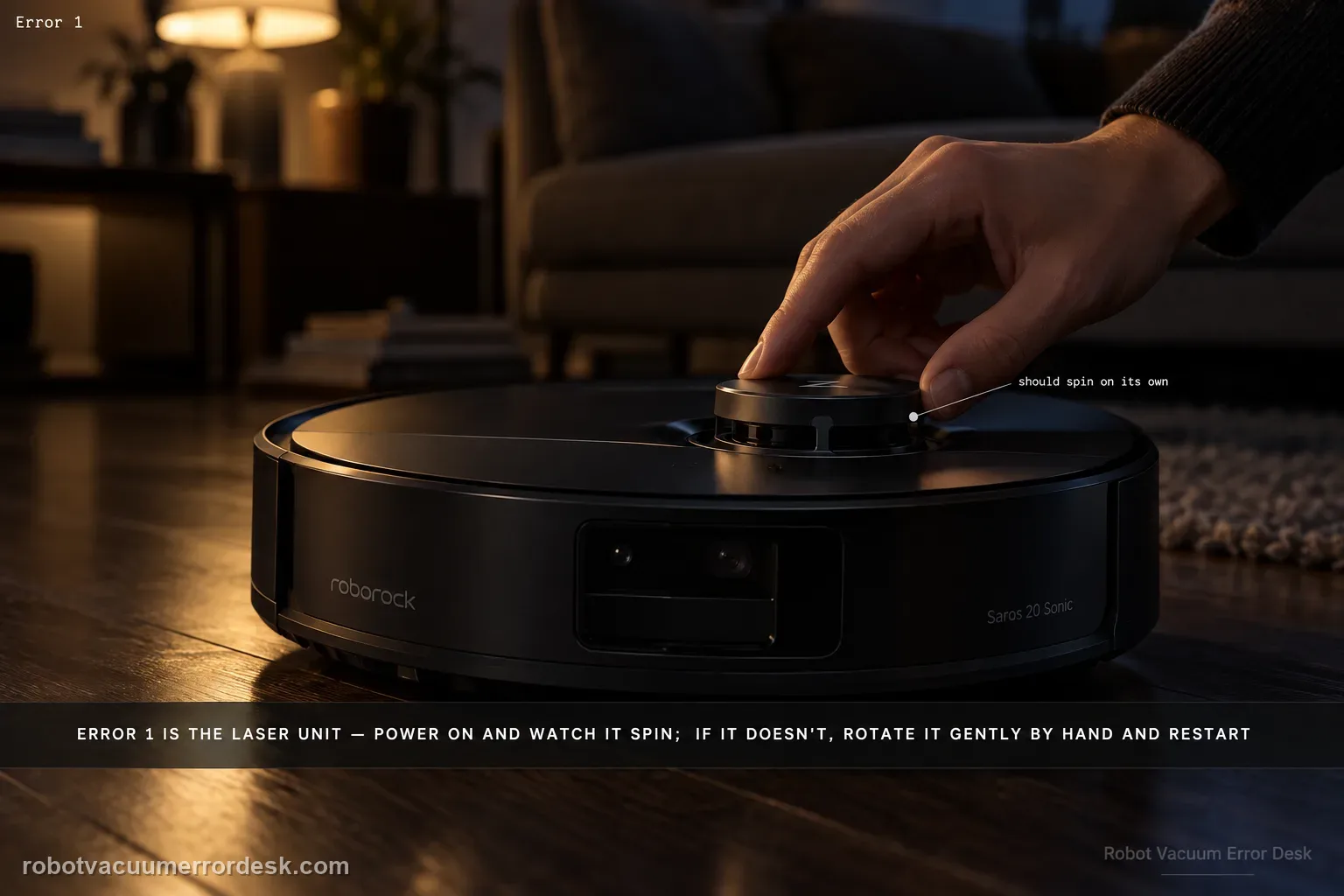
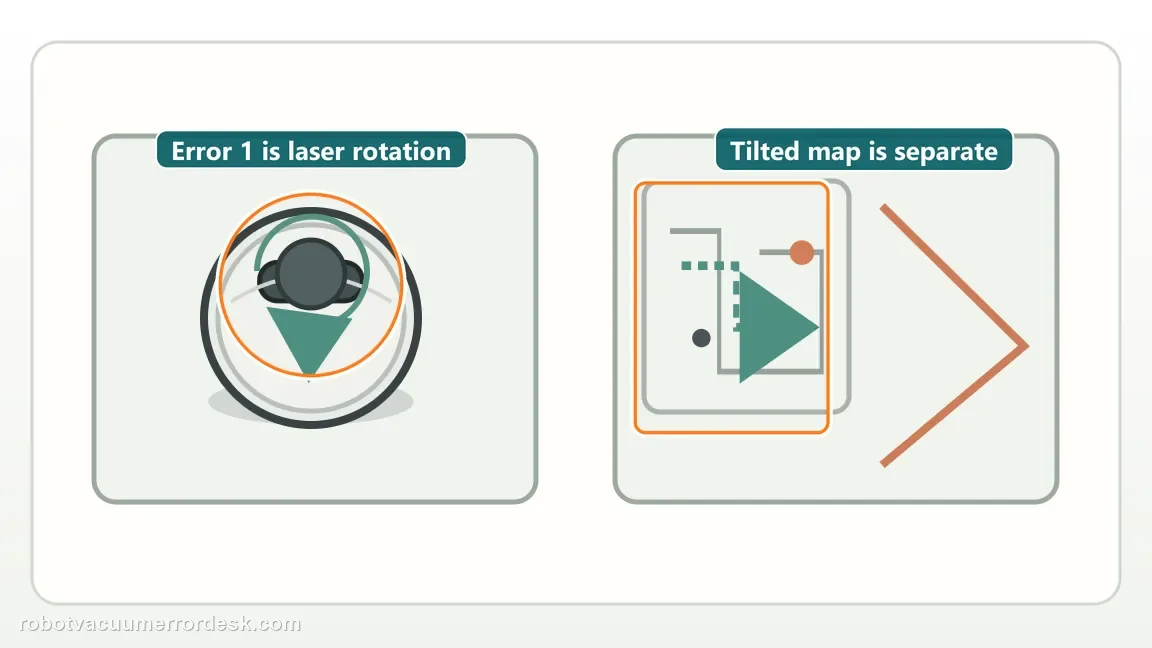
Error 1 is a laser-unit fault path, not a reason to delete the map first. Roborock’s exact Saros 20 Sonic support says to power the robot on and verify that the laser unit is spinning. If it is not spinning, gently rotate it manually and restart. The key is the physical pass/fail observation: spins normally, does not spin but frees gently, or remains bound/fails again. Preserve the map while you prove that hardware state.
Confirm the exact model and exact code, light pattern or symptom.
Run the lowest-risk physical or software check first.
Use each pass condition to decide what the result actually narrows down.
Does this match your problem?
- The Saros 20 Sonic displays Error 1 or stops because the laser unit cannot initialize.
- The robot powers on but localization/navigation fails immediately.
- The laser/LiDAR unit appears stationary, jerky or unable to complete normal startup rotation.
- The robot later spins or maps badly and you need to distinguish a laser-unit fault from a map-only issue.
Most likely causes
Laser unit temporarily stuck and unable to start normal rotation
Hair, dust or a small obstruction creating drag around the moving laser assembly
External pressure/low-clearance contact interfering with the top sensing assembly
Laser unit spins physically but Error 1 persists, pointing beyond a simple mechanical bind
Persistent LiDAR module/motor/sensor fault that requires manufacturer service
What your test result means
| What you observe | What it narrows down | Next move |
|---|---|---|
| Laser unit spins smoothly at startup and Error 1 clears | The laser assembly initialized normally after the intervention. | Run a short open-area localization test and leave the saved map intact. |
| Laser does not spin, but turns gently by hand and works after restart | A temporary mechanical bind or stalled startup was likely. | Observe for recurrence and inspect the surrounding seam for accessible debris without opening the module. |
| Laser remains hard to turn or repeatedly stops | The problem is mechanical enough that repeated restarts are unlikely to be useful. | Stop forcing the assembly and contact Roborock. |
| Laser visibly spins but Error 1 persists | A simple non-spinning explanation has been ruled out. | Document the spinning unit plus error and escalate rather than deleting maps or forcing the turret. |
| Error 1 repeats after the documented Saros 20 Sonic checks | The owner-level error 1 path is exhausted | Preserve the failed pass condition and contact Roborock with the error 1 evidence. |
Reset can erase maps/settings on this path. Use lower-risk checks first and document the current state before resetting.
Run these checks in order
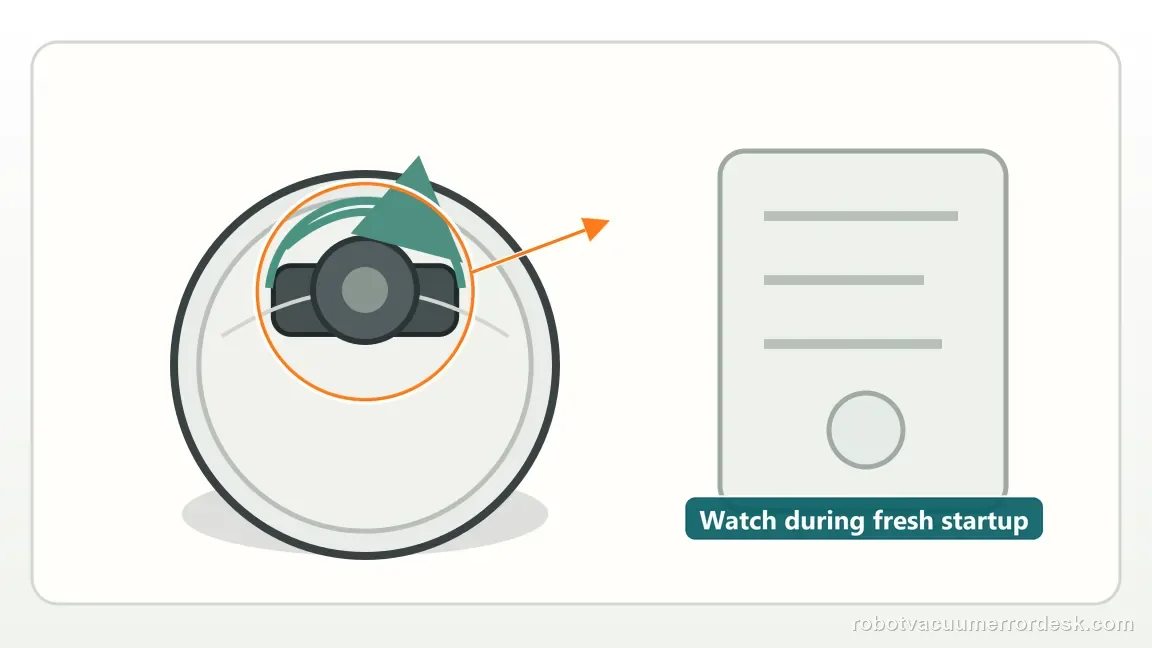
Watch the laser unit during a fresh startup
Move the robot to an open, level area, power it on and watch the top laser/LiDAR assembly during startup. Roborock’s exact Saros 20 Sonic Error 1 instruction starts with this physical observation: make sure the laser unit is spinning. Do not infer rotation from motor sound or from the app. The useful diagnosis is visual — smooth rotation, jerky/partial rotation or no rotation. Keep the saved map and room settings untouched during this test because a map reset cannot make a physically stalled laser unit start spinning, and deleting data would remove context without answering the hardware question.
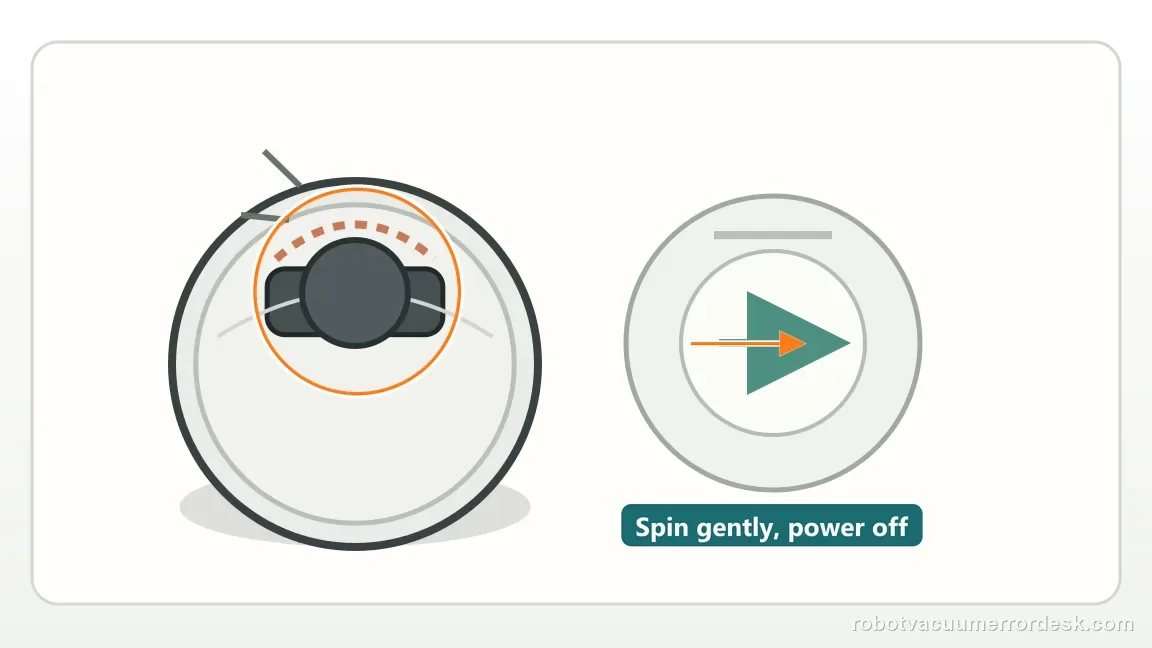
If it is stopped, test only a gentle manual free-spin
Power the robot down before touching the moving assembly. If the laser unit was not spinning, Roborock says to rotate it gently manually. Use only light fingertip pressure to determine whether it can move; do not pry, lubricate or keep applying force to a hard bind. While checking the accessible area, remove obvious loose hair or debris around the outside seam without opening the LiDAR housing. The purpose is not to repair the module internally — it is to distinguish a temporary accessible bind from a unit that remains mechanically resistant and should be serviced.
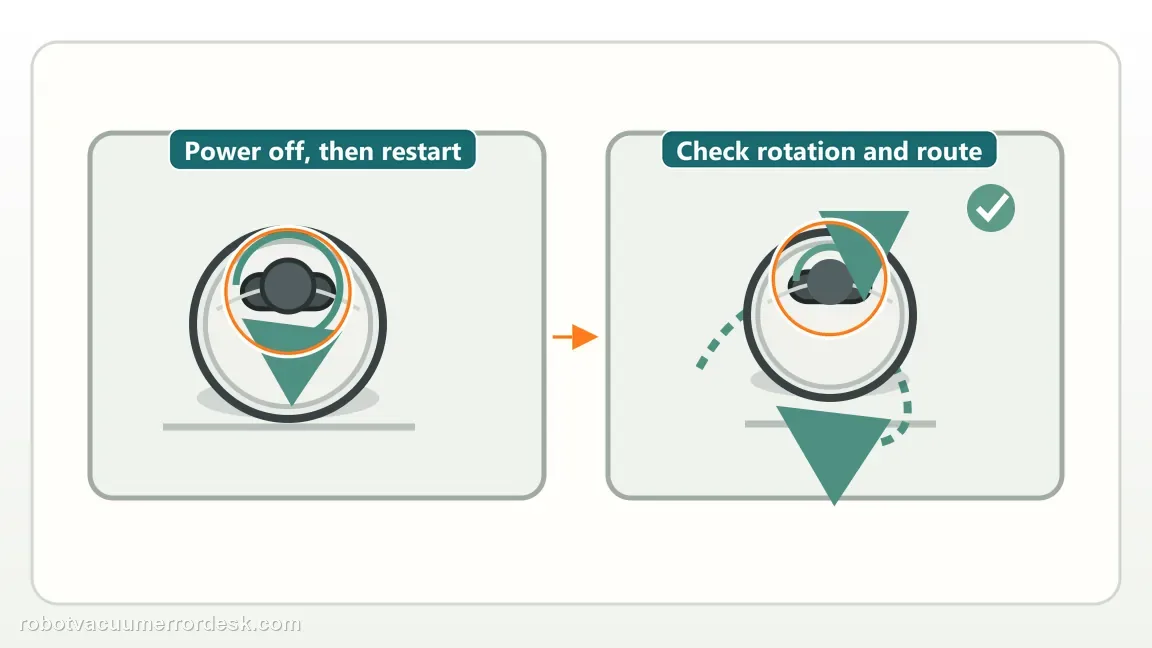
Restart once and observe both rotation and localization
After a gentle free-spin check, restart the Saros 20 Sonic and watch the laser again. If normal rotation resumes, begin a short cleaning/localization test in open space. Observe whether the robot drives with normal orientation and whether Error 1 returns. Do not immediately run a whole-house clean or remap every floor; a five-minute controlled test gives a cleaner result. If the laser spins and the robot localizes, the problem may have been a temporary stall. If the laser stops again or the same error returns immediately, recurrence is more important evidence than repeated attempts to ‘unstick’ it.
Separate Error 1 from look-alike navigation symptoms
A robot that spins in circles, bumps or creates a poor map can have navigation symptoms, but Error 1 specifically directs you to the laser unit. If the laser rotates smoothly yet the error persists, do not keep cleaning the map or changing Wi-Fi settings as if they proved the laser is healthy. Conversely, if Error 1 clears and the laser spins normally but a saved map is still visually distorted, handle that as a separate map/navigation problem. Keeping these branches separate prevents a deep reset from masking the original fault. First prove the moving LiDAR state; only then evaluate any separate navigation or map behavior.
Escalate a hard bind or spinning-but-persistent Error 1
Contact Roborock when the laser will not turn gently, repeatedly stalls after restart, or visibly spins while Error 1 still returns. Send a short startup video showing the top unit and the error, plus whether a gentle manual rotation was possible. Do not open the LiDAR module, apply oil, force the turret or perform repeated factory resets. Roborock’s official generic Error 1 guidance ends at gentle rotation, restart and support; staying within that boundary protects both the hardware and the quality of the evidence you provide.
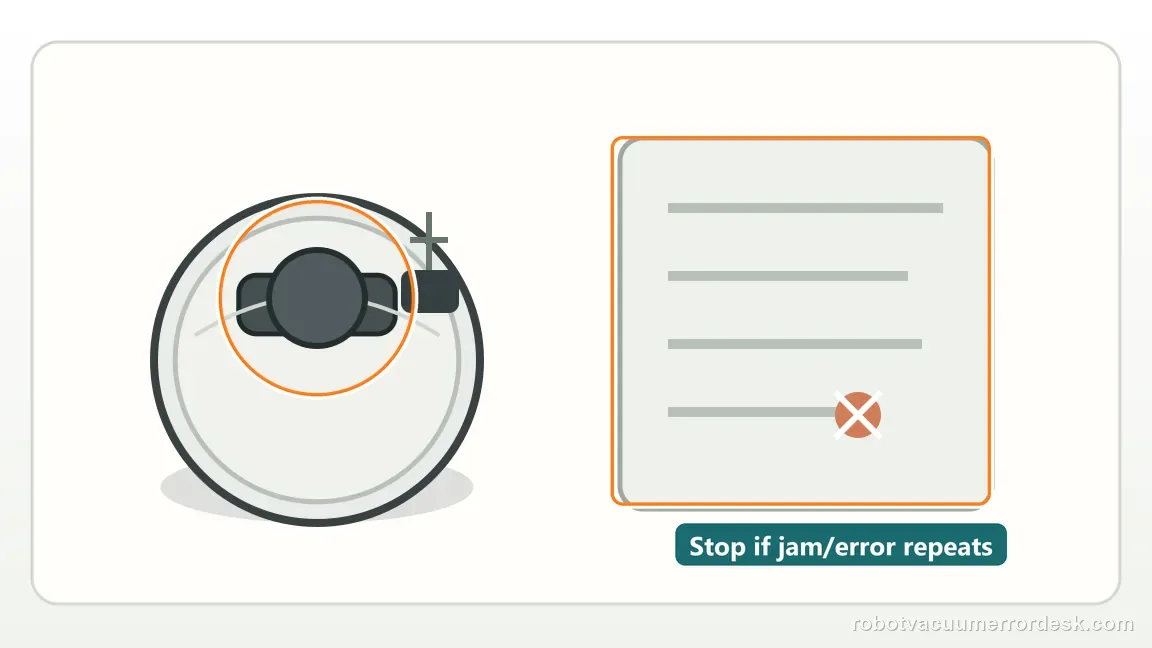
Stop owner-level troubleshooting if the laser unit is hard to rotate gently, repeatedly stalls after one restart, or spins normally while Error 1 persists. Do not open or lubricate the LiDAR module. Preserve the saved map until a separate map problem is actually proven.
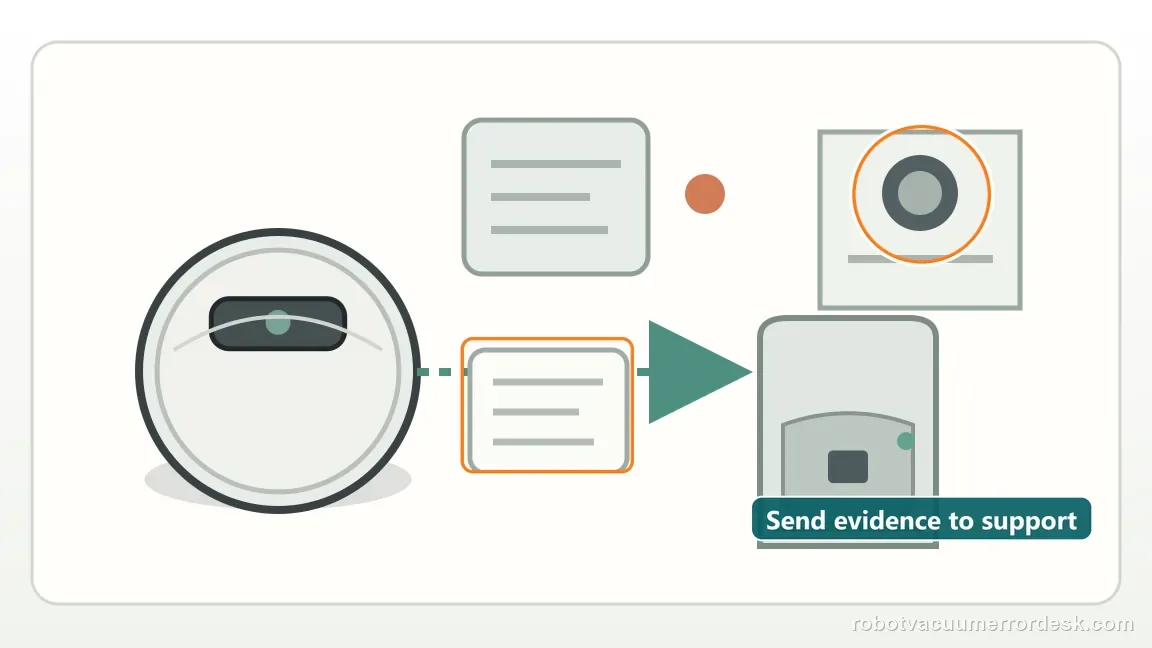
What to collect before contacting support
Give support a reproducible case instead of “it doesn’t work.” That reduces repeated basic troubleshooting and preserves the clues from your tests.
- Exact model name and the error code / voice prompt exactly as shown
- A photo or screenshot of the app error and the time it occurred
- A short list of the checks already completed and what happened after each one
- Firmware/app version if the issue began after a software change
Manufacturer evidence
Roborock Saros 20 Sonic — Error 1
Roborock’s exact Saros 20 Sonic page says to verify laser rotation, gently rotate the unit if it is not spinning, restart and contact support if the error persists. The generic Roborock Error 1 article confirms the same boundary. This guide adds controlled observation and branch logic without introducing invasive repair steps.
Additional official source: Roborock — What should I do when Error 1 occurs? ↗Additional official source: Roborock Saros 20 Sonic — Product Support and Manuals ↗Additional official source: Roborock Support Center — Help & Manuals ↗Last editorial review: September 5, 2026Regional note: manufacturer help centers, model suffixes, mains-power requirements and warranty procedures can differ by country. If the source redirects to a local support site, confirm that the model/hardware scope still matches before following a region-sensitive step.
This guide is rated Official model support. See what each evidence label means →
FAQ
Should I delete the Saros 20 Sonic map when Error 1 appears?
No. Error 1 is first a laser-unit diagnosis. Roborock tells you to verify whether the laser spins, gently rotate it if stopped and restart. A map reset does not answer whether the LiDAR can physically initialize, and deleting a good map can create a second problem while the original hardware state remains unknown.
How hard should I turn the laser unit by hand?
Only gently, as Roborock states. The goal is to see whether it can move freely enough to clear a temporary stall, not to overpower a stuck bearing or motor. If it feels hard-bound, stop. Forcing, prying or lubricating the module goes beyond the manufacturer’s owner-level Error 1 procedure.
What if the laser visibly spins but Error 1 still returns?
That result is important because it rules out the simplest explanation — a unit that is not spinning at all. Record the spinning unit and the error together and escalate. Do not keep forcing the turret or assume that deleting the map, resetting Wi-Fi or changing unrelated settings will repair a sensor that already rotates physically.
Can I keep using the robot if Error 1 clears after one restart?
Run a short open-area test first. If the laser spins smoothly, the robot localizes normally and Error 1 does not recur, normal use is reasonable while you watch for recurrence. If it stalls again, treat the repeated pattern as evidence and contact Roborock rather than repeatedly freeing the unit by hand.
What proves the Saros 20 Sonic Error 1 laser test has failed?
With Error 1, Roborock asks you to power the robot on and watch whether the laser unit spins, then gently rotate it manually if it does not and restart. If the laser still does not spin or Error 1 immediately returns after that owner-safe check, record the laser behavior. Do not force the module or open the sensor housing.
Did this diagnostic narrow the fault?
Use this as an editorial signal, not a popularity counter. If a feedback address is configured you can email the note; otherwise you can copy it for your own support record.