Roborock Saros 20 Sonic troubleshooting
Exact error-code, charging, docking, mapping and noise diagnostics from model support. We route by the exact error or symptom rather than assuming a generic robot-vacuum fix applies.
Use Roborock's exact-model support page for the manual and current troubleshooting material. The issue pages below retain their own evidence and model-specific boundaries.
Roborock Saros 20 Sonic support →
Saros 20 Sonic user manual (PDF) →
No public version number is hard-coded here. Record the version shown in the Roborock app before troubleshooting a change that appeared after an update.
Roborock Saros 20 Sonic issue index
25 guides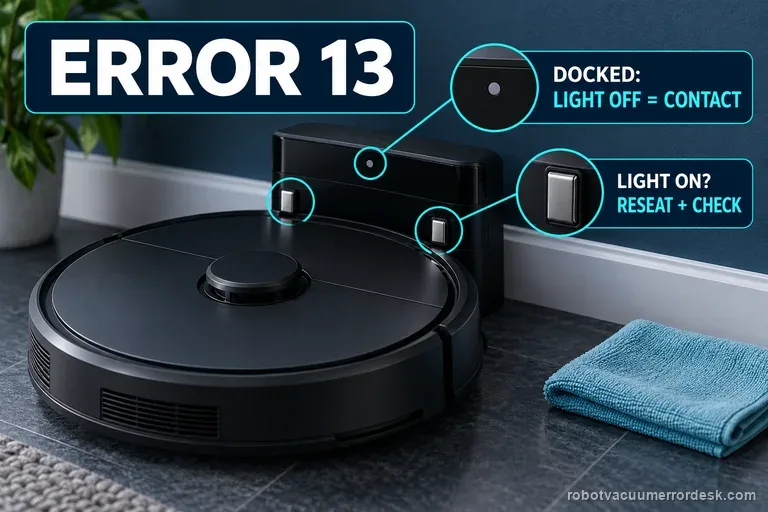
Error 13
Roborock Error 13 on the Saros 20 Sonic is a charging-contact diagnosis. The model support page says the dock indicator should be OFF when the robot is docked and charging correctly; if it stays ON, reposition the robot, clean the contacts on robot and dock, then prove dock power and the wall outlet. Use the light state as the key pass/fail signal instead of replacing a battery before contact alignment and power are proven.
Can't find dock
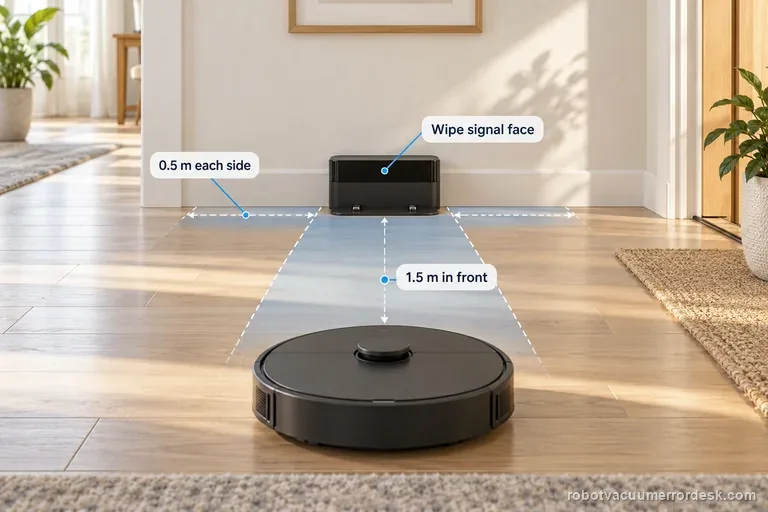
If the Roborock Saros 20 Sonic cannot find its dock, check the dock is plugged in and test from the saved map without carrying the robot. Roborock lists a different start location, obstacles, or manual movement as causes. Keep 0.5 m clear at each side and 1.5 m in front, then wipe the dock signal area and robot front sensor.
Map wrong angle
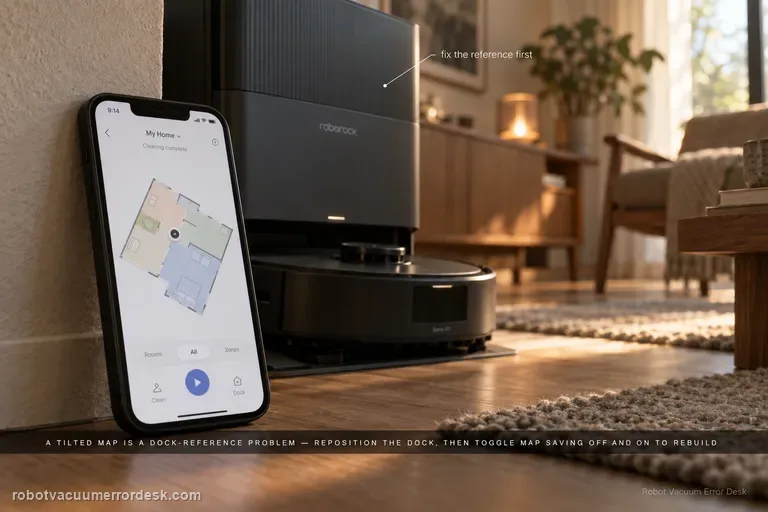
A Saros 20 Sonic map that appears rotated or at the wrong angle is usually handled as a dock-placement/map-orientation issue. Roborock says the map should display horizontally or vertically. Move the dock to a clearer location with roughly 0.5 m at each side and 1.5 m in front; if orientation stays wrong, switch Map Saving off and back on so the next cleanup creates a new map. Preserve a good map before rebuilding.
Abnormal noise
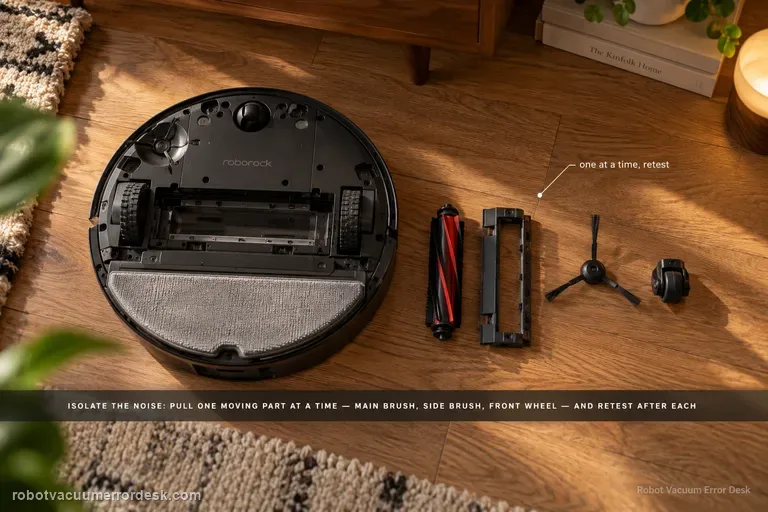
Roborock’s Saros 20 Sonic noise test is a component-isolation sequence, not “clean everything and hope.” Test briefly after each change: remove the main brush and cover, then the side brush, then the front wheel; press/rotate the drive wheels by hand; clean the dustbin/filter or use lowest suction; finally remove the mop mount or use Vacuum Only. When the noise disappears after one change, reinstall that component correctly and retest.
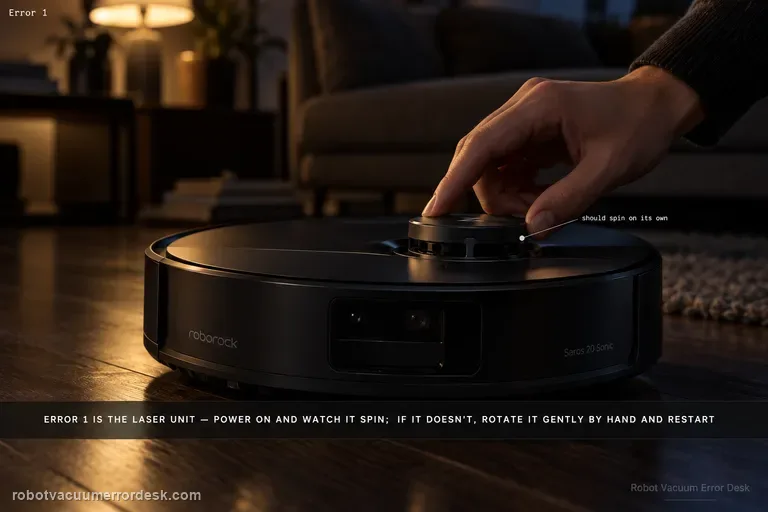
Error 1
Error 1 is a laser-unit fault path, not a reason to delete the map first. Roborock’s exact Saros 20 Sonic support says to power the robot on and verify that the laser unit is spinning. If it is not spinning, gently rotate it manually and restart. The key is the physical pass/fail observation: spins normally, does not spin but frees gently, or remains bound/fails again. Preserve the map while you prove that hardware state.
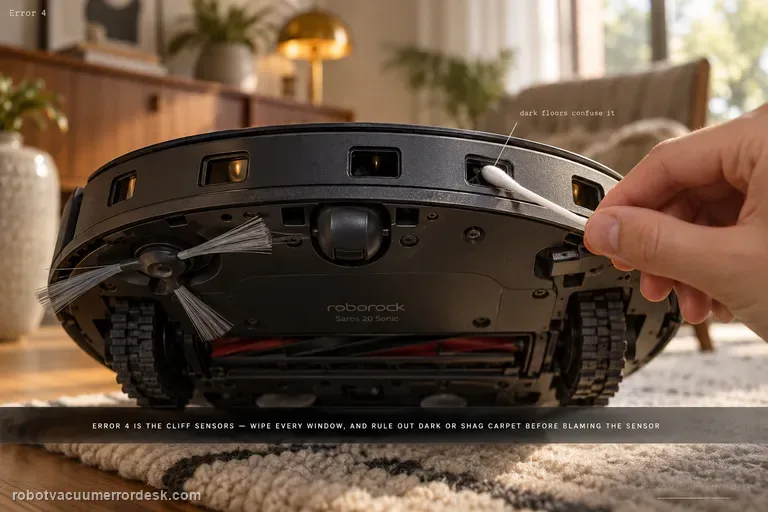
Error 4
Saros 20 Sonic Error 4 points to the cliff/anti-drop sensing path. Roborock says to wipe the cliff sensors and make sure the robot is not operating on dark or shag carpet, which can confuse the downward-facing sensing. Clean every accessible cliff-sensor window, move the robot to a normal light hard floor, restart and test there. A repeatable Error 4 on a safe ordinary floor after cleaning is the point to escalate.
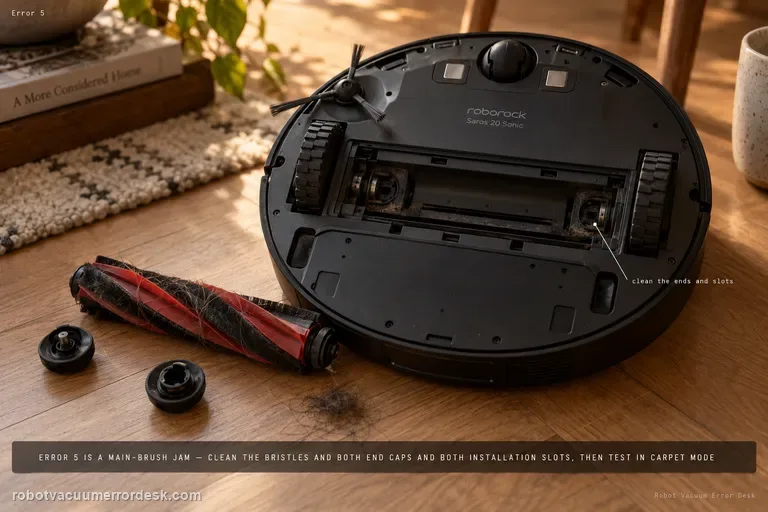
Error 5
Roborock Error 5 on the Saros 20 Sonic is the main-brush jam path. Remove hair and debris not only from the visible bristles but from both brush-installation slots and both ends of the brush. Reinstall it correctly, then run a short test with Carpet mode enabled as Roborock specifies. If the brush rotates freely by hand but Error 5 returns immediately in a clear test area, stop buying brushes at random and escalate with the cleaned end/slot condition.
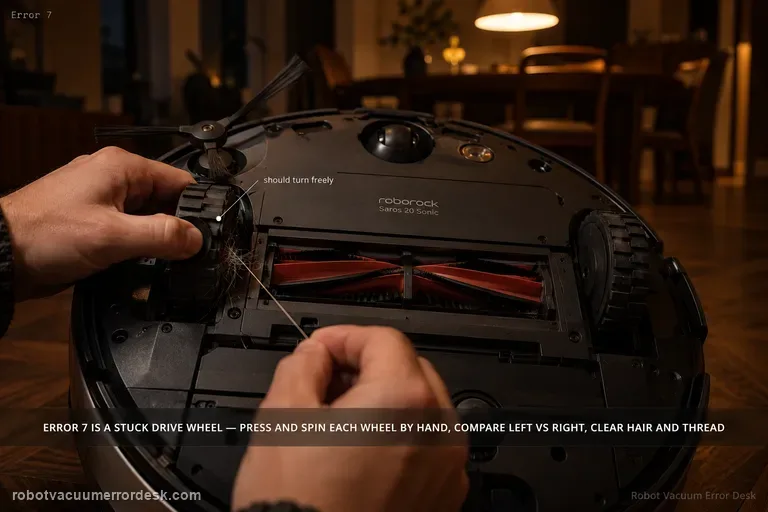
Error 7
Saros 20 Sonic Error 7 is a wheel-stuck diagnosis. With the robot stopped and safe to handle, press and spin each drive wheel manually and compare left versus right movement. Remove hair, thread or debris that prevents free travel. Then run a short test on clear hard floor before adding rugs or thresholds back. If one wheel still binds or Error 7 returns without environmental obstacles, document that side for Roborock support.
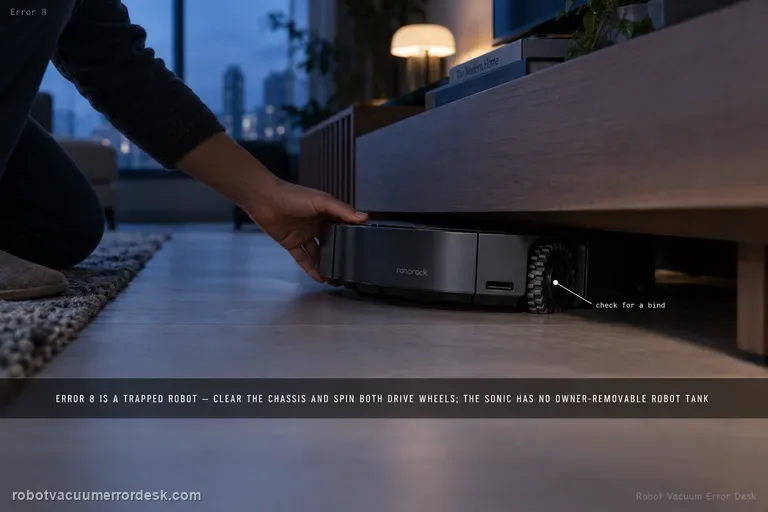
Error 8
Roborock’s Saros 20 Sonic support lists Error 8 as a trapped-robot check: clear obstacles and press/spin the drive wheels to find a bind. That support entry also includes a generic “remove the water tank if installed” step. The current Saros 20 Sonic manual does not show an owner-removable robot water tank; it shows a self-filling port on the robot and removable clean/dirty tanks in the dock. Do not open the robot or try to remove an internal tank. Clear the chassis, compare both drive wheels on safe hard flooring, and run one short control test. If Error 8 returns with free wheels and no obstruction, escalate with the exact code and a short video.
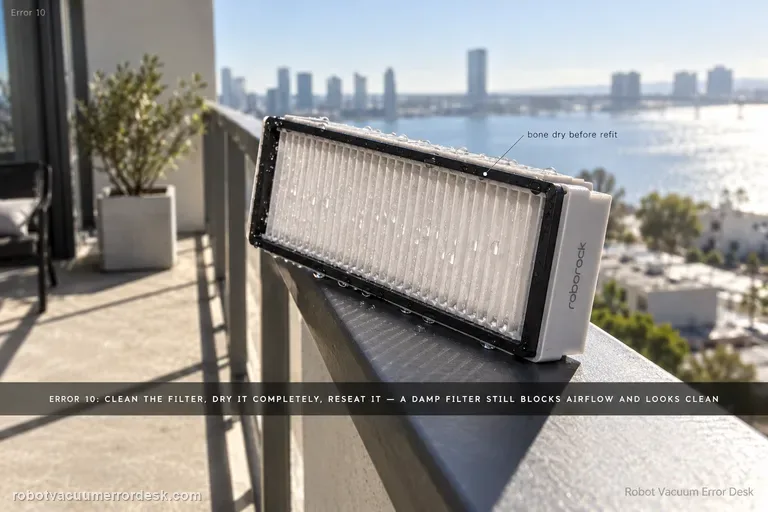
Error 10
Roborock’s exact Saros 20 Sonic Error 10 instruction is deliberately simple: clean the filter, dry it thoroughly, reinstall it and try again. The important diagnostic work is proving those words rather than doing them approximately. A damp filter can look clean while still restricting airflow; a dusty bin/filter seal or poorly seated assembly can produce the same practical symptom. Use a known-dry filter and a short controlled suction test before treating Error 10 as a fan failure.
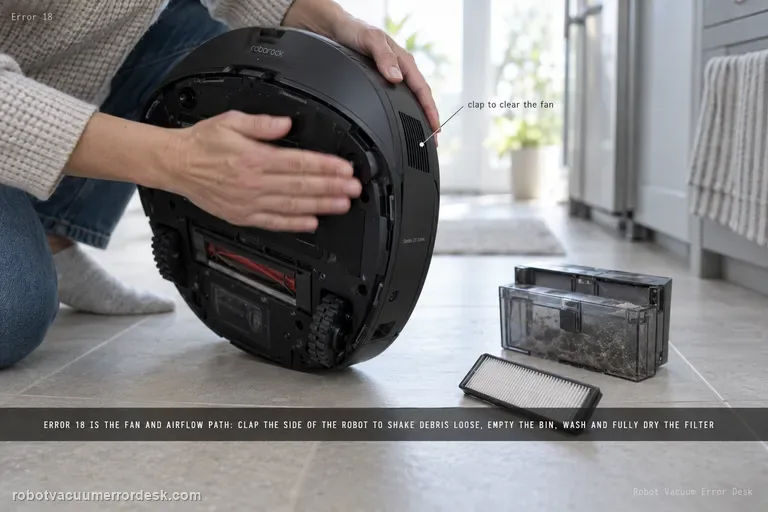
Error 18
Saros 20 Sonic Error 18 points to the fan/airflow path. The exact model page tells owners to clap the side of the robot several times to try to clear debris from the fan. Roborock’s broader Error 18 support also advises emptying the dustbin, cleaning and fully drying the filter, trying a new filter, and updating firmware. Use those owner-safe airflow checks before assuming the suction motor itself has failed.
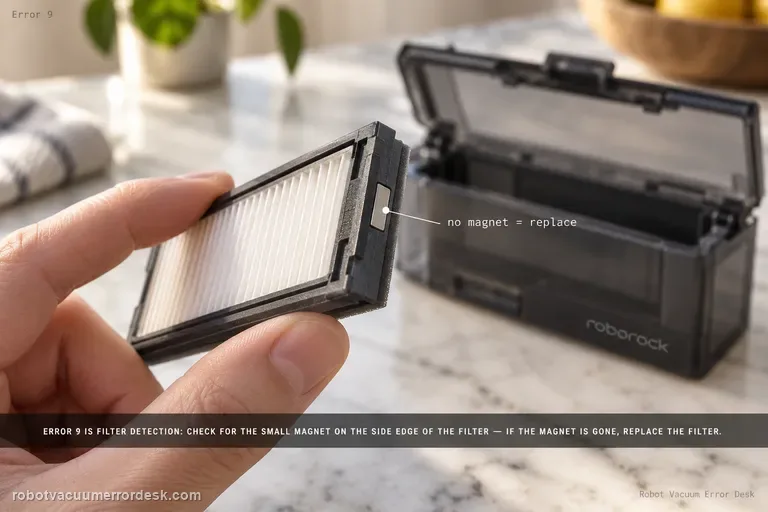
Error 9
Roborock Error 9 on the Saros 20 Sonic is a filter-detection check. The model support page says to look for the magnet on the side of the filter; if the magnet is missing, replace the filter and try again. First remove and inspect the filter carefully, clean its seating area, and reinstall it correctly. A present magnet plus correct seating but immediate Error 9 points beyond a simple missing-filter-magnet case.
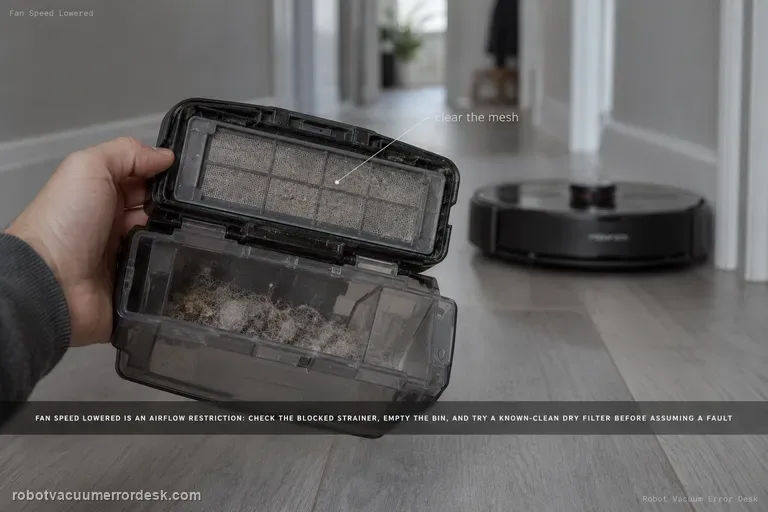
Fan speed lowered error
The Saros 20 Sonic “fan speed lowered” message is an airflow restriction check. Roborock says to inspect the blocked strainer and replace the filter to see whether the problem is solved. Empty the dustbin, clean accessible airflow surfaces, use a known-clean dry filter, then run the same suction mode again. If suction remains lowered with a clear bin/strainer and known-good filter, record the message and actual airflow behavior for support.
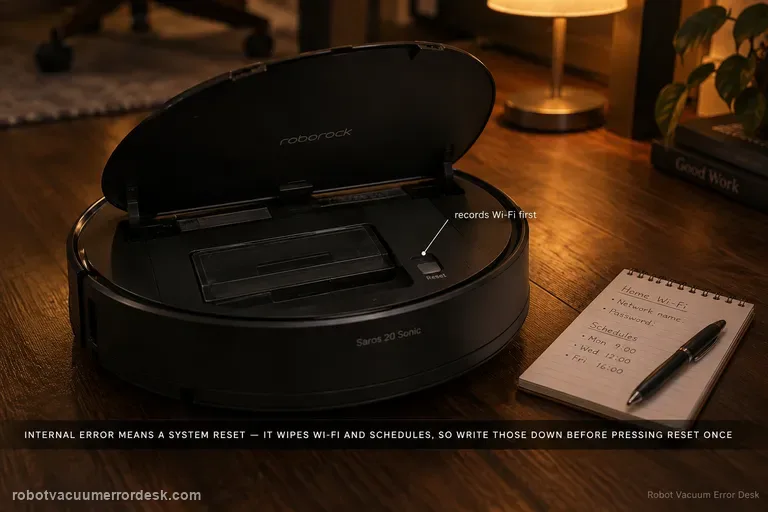
Internal error
For a Saros 20 Sonic Internal Error, Roborock’s exact model page tells owners to reset the system using the Reset button under the top cover. That reset returns current settings to factory defaults, including Wi‑Fi and scheduled cleanups, so record the network name, schedules and important app settings first. Perform one reset, reconfigure only what is necessary for a simple test, and escalate if the internal error returns.
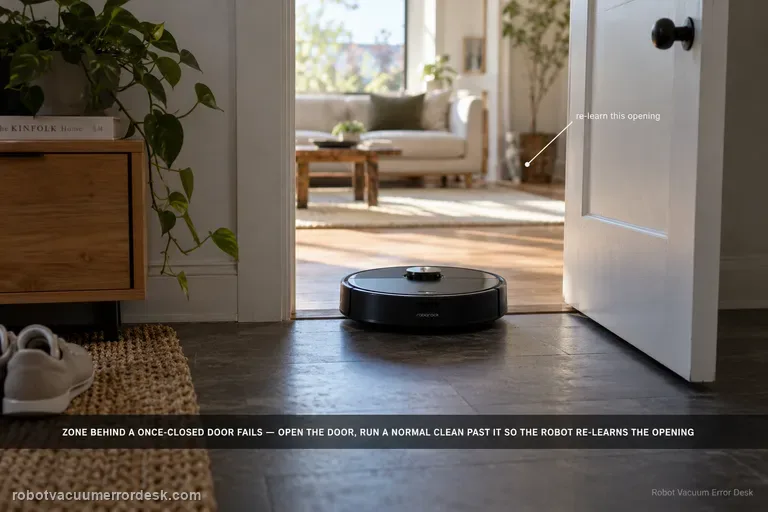
Zone cleaning fails
Zone cleaning on the Saros 20 Sonic can fail when the selected zone is in an area the robot previously understood as being behind a closed door. Roborock says to open the door, start a normal cleanup near that doorway so the robot recognizes the changed access, and then start zone cleaning again. The key is updating the robot’s local understanding of the doorway before repeatedly redrawing the same zone.
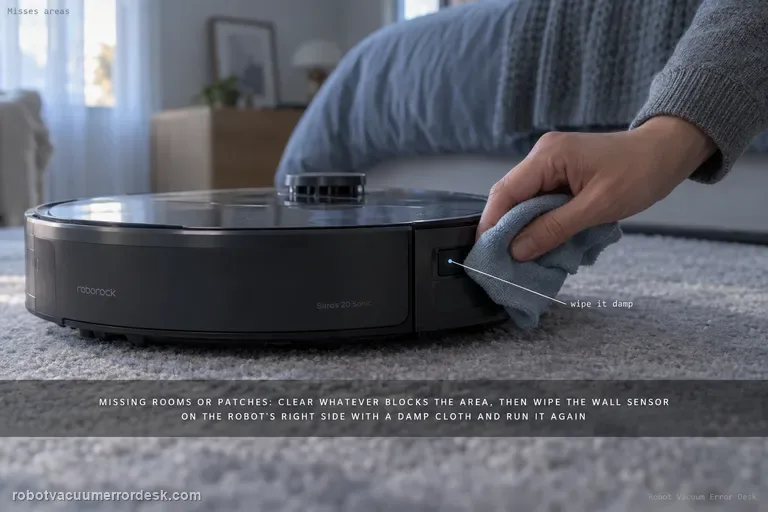
Misses cleaning areas
If a Saros 20 Sonic misses rooms or patches, Roborock starts with access obstacles and the wall sensor on the robot’s right side. Remove objects that block the missed area, then wipe the right-side wall sensor with a damp cloth and run another cleanup. Define “missed” only after the cleaning task finishes, and compare whether the same area is skipped again. Repeated misses with clear access and a clean wall sensor justify deeper map/navigation review.
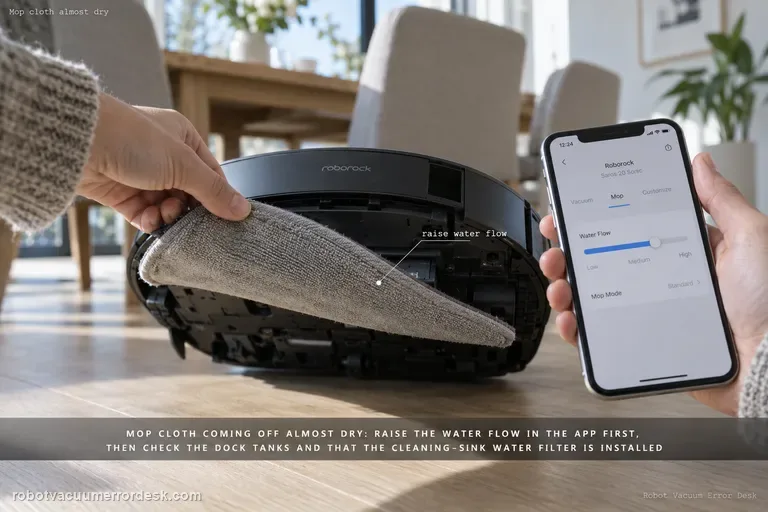
Mop cloth almost dry
For a Saros 20 Sonic that leaves the mop cloth almost dry, use the current model manual as the owner-safe baseline: its Common Issues table says to increase water flow in the mobile app when there is no or little water during mopping. If that does not change the cloth, verify the dock can support a normal wash/refill cycle—clean-water tank seated and filled, dirty-water tank seated with capacity, and the cleaning-sink water filter installed correctly. Then run one dock-started mopping test without changing several settings at once. Do not open the robot’s internal water path, probe outlets with a needle, or remove an internal tank; those actions are not part of the current Sonic manual’s owner procedure.
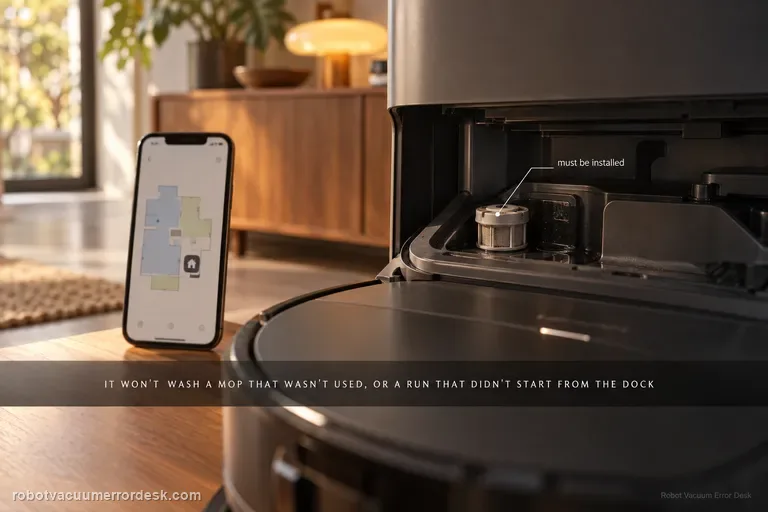
Mop cloth will not wash
If the Roborock Saros 20 Sonic will not wash its mop cloth, first separate a normal no-wash condition from a dock fault. The manual says the mop will not be washed if it was not used, and the robot will not return for mop washing if it did not start from the dock or no dock is present on the app map. After those conditions pass, check clean-water supply, dirty-water capacity and the cleaning-sink water filter. A controlled mop task that starts at the dock is the cleanest proof because it tests the full return-and-wash path without mixing in manual relocation.
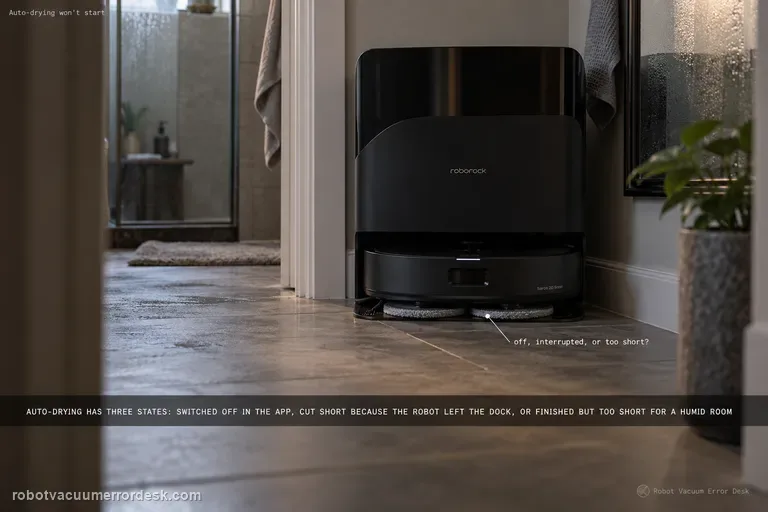
Auto-drying will not start
When Saros 20 Sonic auto-drying does not start, check the setting before treating the dock as failed. Roborock’s manual says auto-drying can be disabled in the app. If drying starts but ends early, the manual gives a different discriminator: the cycle ends in advance if the robot departs the dock. A third branch is performance rather than startup—high humidity can require a longer drying duration. Keep those three states separate: disabled, interrupted by departure, or complete but insufficient in humid air.
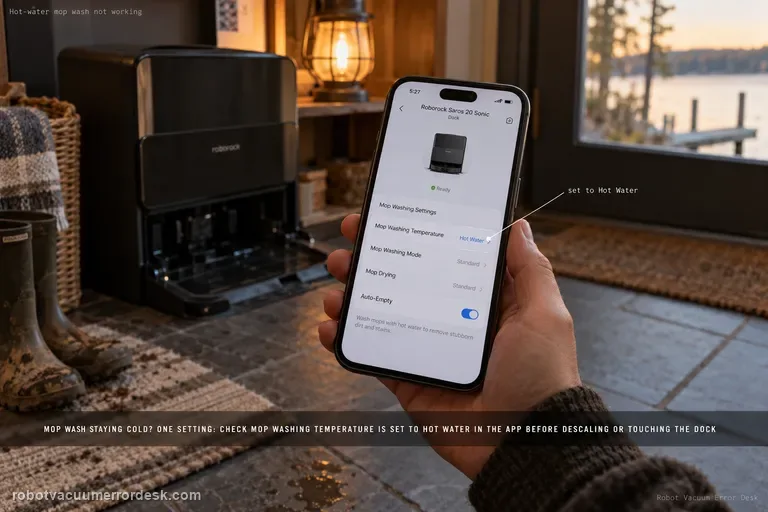
Hot-water mop wash not working
If the Saros 20 Sonic is washing the mop but the hot-water function seems absent, the model manual gives one owner-facing control: check that Mop Washing Temperature is set to Hot Water in the app. That makes this a setting-first diagnosis, not a reason to descale, dismantle the dock or add hotter water manually. Confirm the exact setting, trigger one normal mop-wash cycle, and distinguish 'wash does not run at all' from 'wash runs but hot-water mode appears not to engage.' The manual also marks dock water outlets and drying areas as hot surfaces, so avoid touch-based temperature tests.
Side brush will not extend
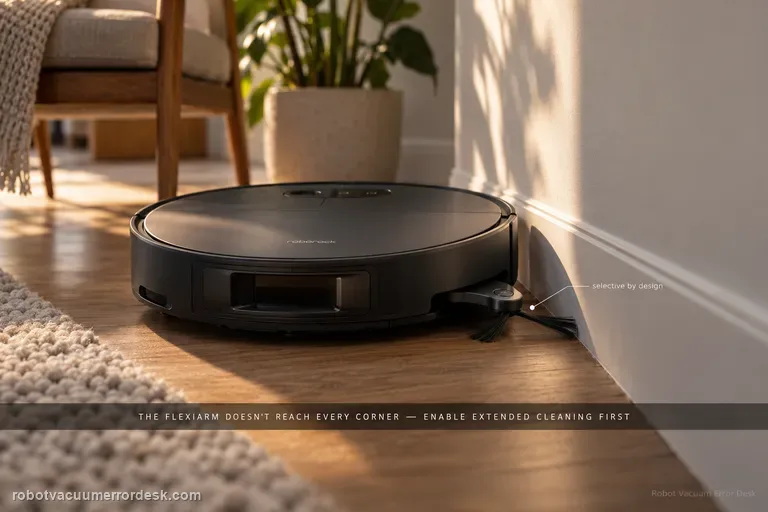
A Saros 20 Sonic side brush that does not extend at every corner is not automatically broken. Roborock’s manual says to verify FlexiArm Design Extended Cleaning is enabled, and it explicitly notes that the side brush does not extend for every corner or every pass along a wall. That normal selective behavior is the key discriminator. Only after the feature is on and the robot reaches a suitable edge should you check whether the side brush is physically jammed. Use one repeatable wall/corner test instead of expecting extension continuously across the room.
LiDAR will not raise or lower
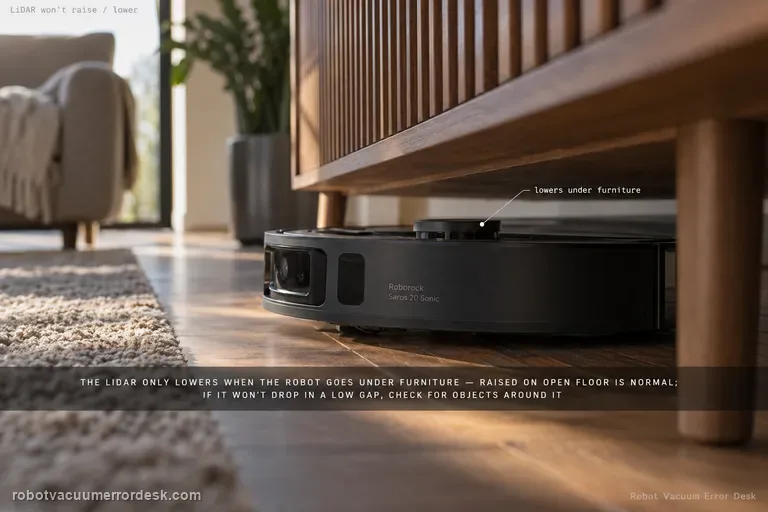
The Saros 20 Sonic’s moving LiDAR should not be judged by whether it raises or lowers continuously. Roborock’s manual says the LiDAR sensor lowers itself only when the robot cleans under furniture or appliances. That means a raised sensor in open floor is normal. If the sensor fails to move when the robot actually enters a low-clearance situation, the owner check is to inspect for objects stuck around the LiDAR sensor. Do not press, pry or force the tower; use a controlled open-floor versus under-furniture comparison to decide whether the behavior is normal context-aware movement or a repeatable mechanism fault.
Mop mount will not detach or reinstall
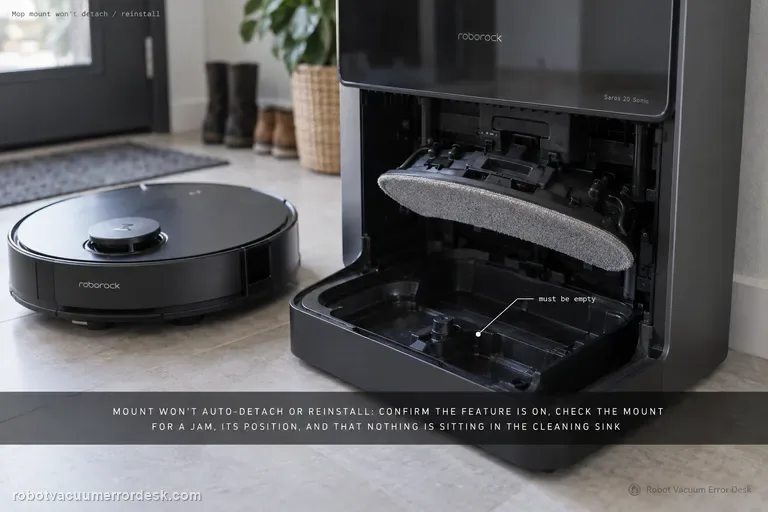
When the Saros 20 Sonic will not automatically detach or reinstall its mop cloth mount, the manual gives a multi-branch checklist. First verify Auto-Detach/Reinstall Mop Cloth Mounts is enabled; the feature works only under specific conditions, so a non-detach event is not always a fault. Then check whether the mount is jammed, whether it is placed in the position where removal occurs, whether it is installed correctly on the robot, and whether anything is sitting in the cleaning sink. Run one controlled dock cycle after those conditions are set instead of manually forcing the mount.
Mop cloth will not extend
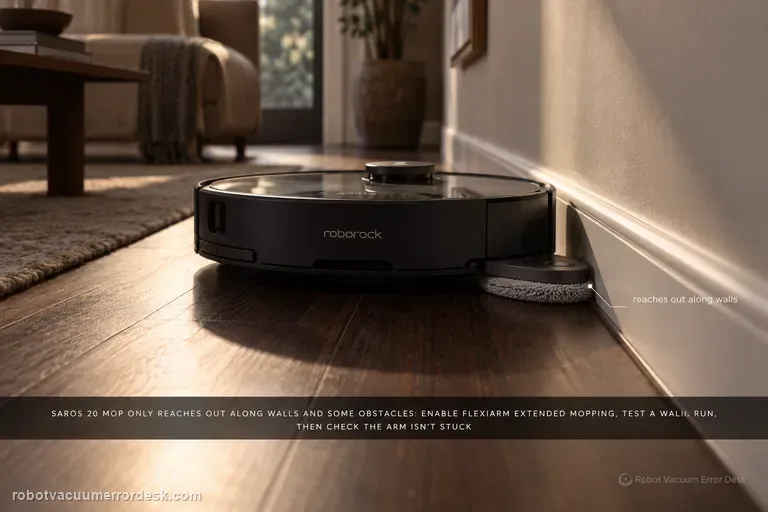
The Saros 20 Sonic mop cloth does not extend continuously. Roborock’s manual says to verify FlexiArm Design Extended Mopping is enabled and notes that the mop extends only along walls and certain obstacles. That selective rule is the first thing to preserve when diagnosing a 'mop will not extend' search. If the feature is enabled and you test a suitable wall/obstacle route, then check whether the mop extension structure is stuck. A pad that remains centered in open floor can be normal; a pad that never extends across repeated valid edge interactions is the stronger fault pattern.
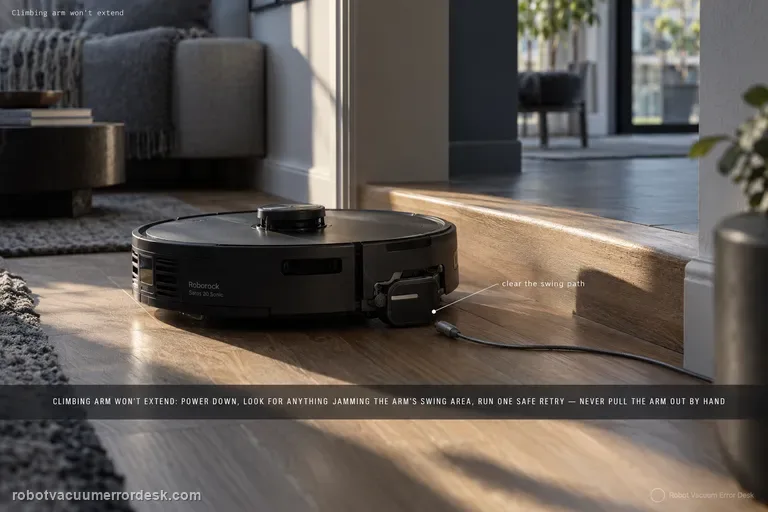
Climbing arm will not extend
For the Saros 20 Sonic climbing arm, Roborock’s manual gives a deliberately narrow owner check: look for foreign objects obstructing the climbing arm’s swing area. That means the safest diagnosis is mechanical observation, not a reset sequence or internal repair. First confirm the complaint is tied to an actual obstacle/threshold attempt, power the robot down, inspect the visible swing area and remove accessible debris. Then run one safe repeat. Do not pull the arm outward by hand or assume it must extend continuously; the useful evidence is whether a clear mechanism still fails during a repeatable crossing attempt.