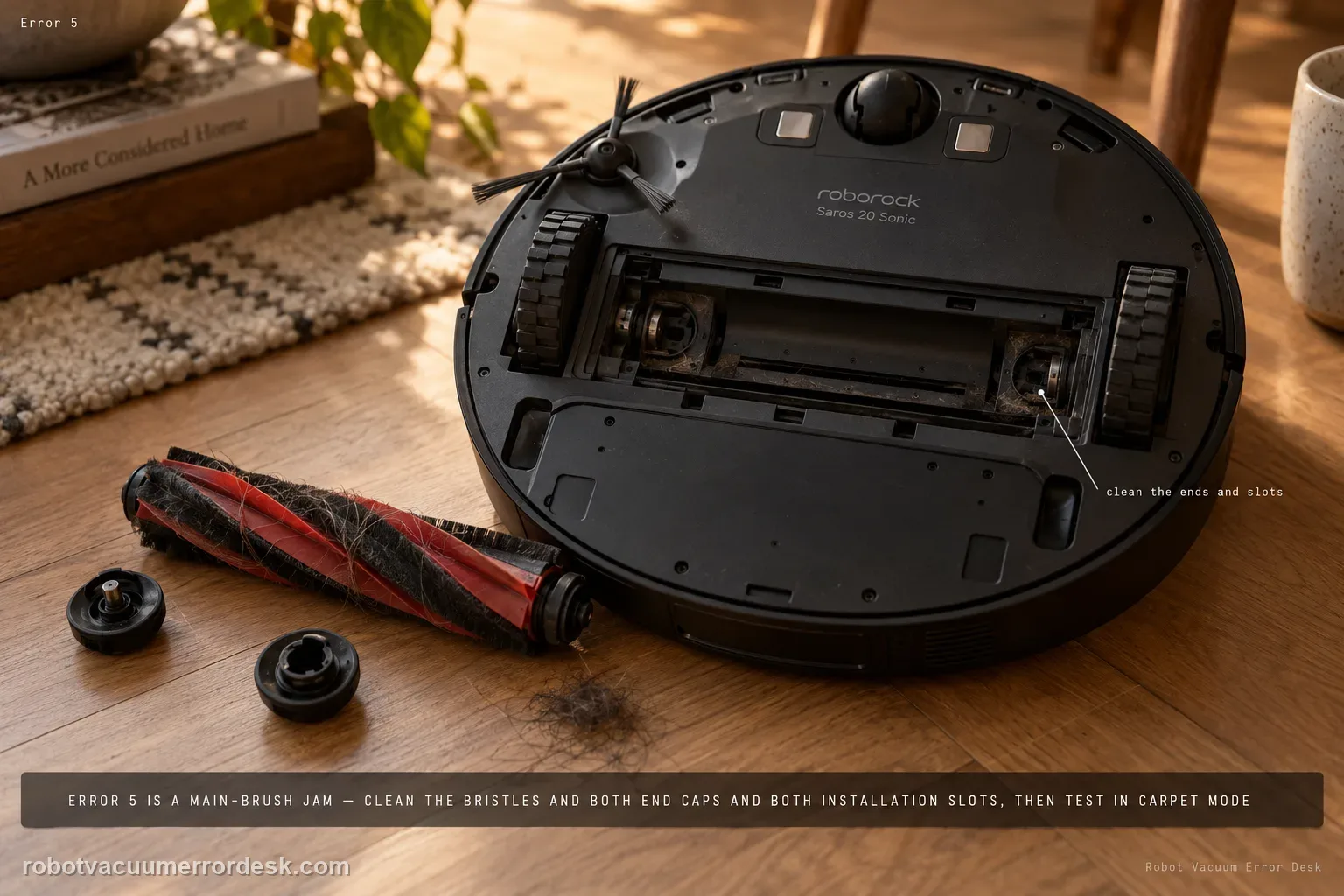
Roborock Error 5 on the Saros 20 Sonic is the main-brush jam path. Remove hair and debris not only from the visible bristles but from both brush-installation slots and both ends of the brush. Reinstall it correctly, then run a short test with Carpet mode enabled as Roborock specifies. If the brush rotates freely by hand but Error 5 returns immediately in a clear test area, stop buying brushes at random and escalate with the cleaned end/slot condition.
Confirm the exact model and exact code, light pattern or symptom.
Run the lowest-risk physical or software check first.
Use each pass condition to decide what the result actually narrows down.
Confirm this is the right issue
- The Saros 20 Sonic displays Error 5.
- The main brush makes a strained sound or stops.
- Hair or fibers are packed near the brush ends or installation slots.
- You are diagnosing error 5 on a Roborock Saros 20 Sonic and want the exact model support path rather than a generic reset list.
What’s most likely causing this
Hair or thread wrapped around the main brush
Debris inside the two brush installation slots
Drag at a brush end or bearing area
A brush that turns freely only after hair is removed from both ends and both installation slots supports a mechanical jam diagnosis; recurrence with a clear brush needs further review.
Reading your test result
| What you observe | What it narrows down | Next move |
|---|---|---|
| Hair is wrapped on brush ends | Rotational drag is likely | Remove hair from both ends. |
| Installation slots contain debris | Brush seating/load may be abnormal | Clean both slots and reinstall. |
| Brush spins freely after cleaning | Accessible mechanical obstruction is removed | Run the requested Carpet-mode test. |
| Error clears in Carpet mode | Jam/seating was the cause | Resume and maintain brush ends regularly. |
| Error returns immediately with clean/free brush | Owner-level jam check failed | Escalate with brush/slot photos and video. |
Do not factory-reset by default. Use the exact model’s reboot/network-reset procedure only when the manufacturer path calls for it.
Work through these checks in order
Remove the main brush and clear visible tangles
Take out the main brush and remove hair, thread and fibers from the bristles and both ends. Error 5 is the main-brush jam path, so start with the part Roborock names rather than dock or map settings.
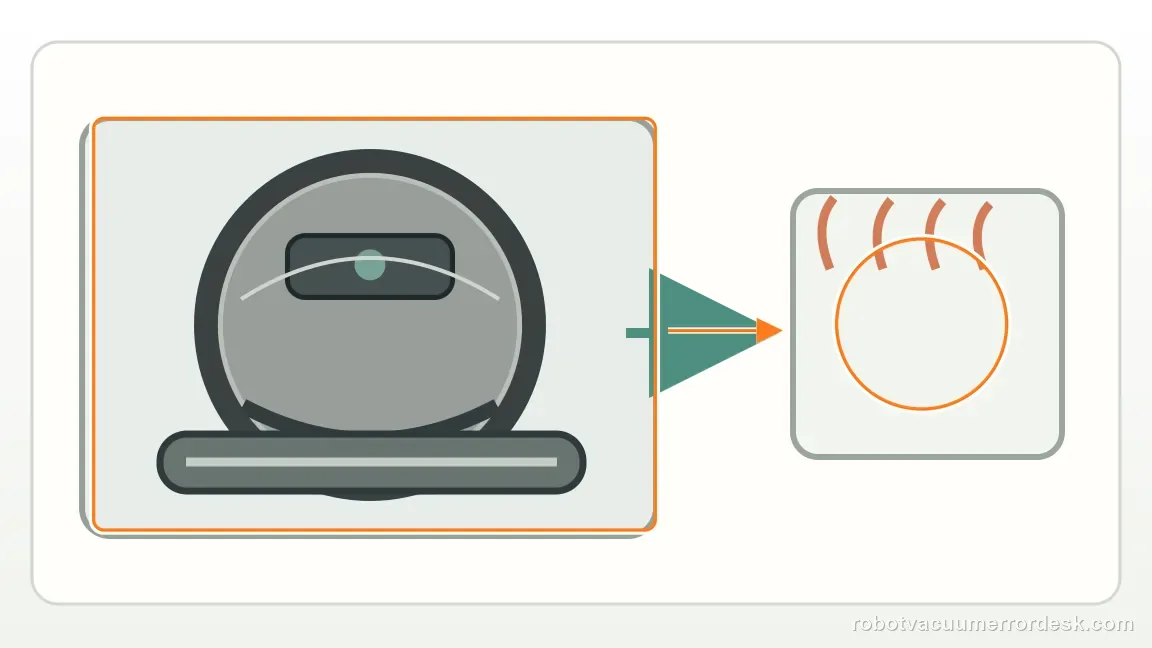
Clean both brush ends and both installation slots
Inspect the end/bearing areas and the two slots where the brush seats. Roborock specifically calls out those hidden areas because compacted debris there can keep the brush loaded even after the center looks clean.
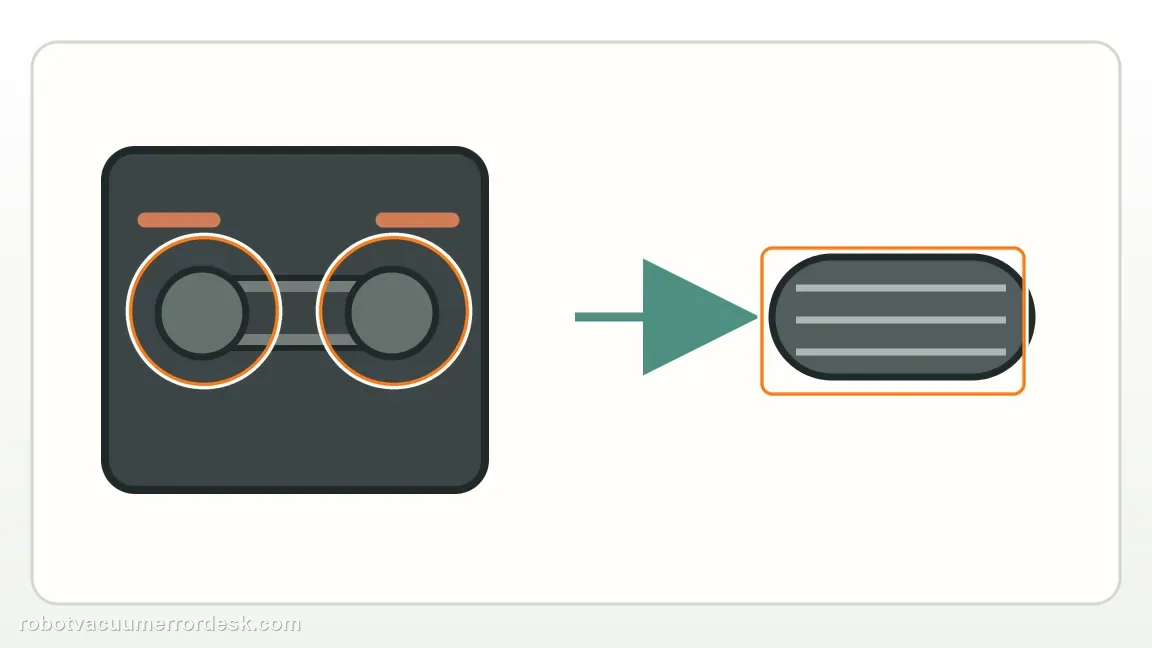
Reinstall the brush and cover correctly
Seat the brush and brush cover in their normal positions and verify nothing is pinched or sitting proud. A clean brush that is mis-seated is not a valid diagnostic state.
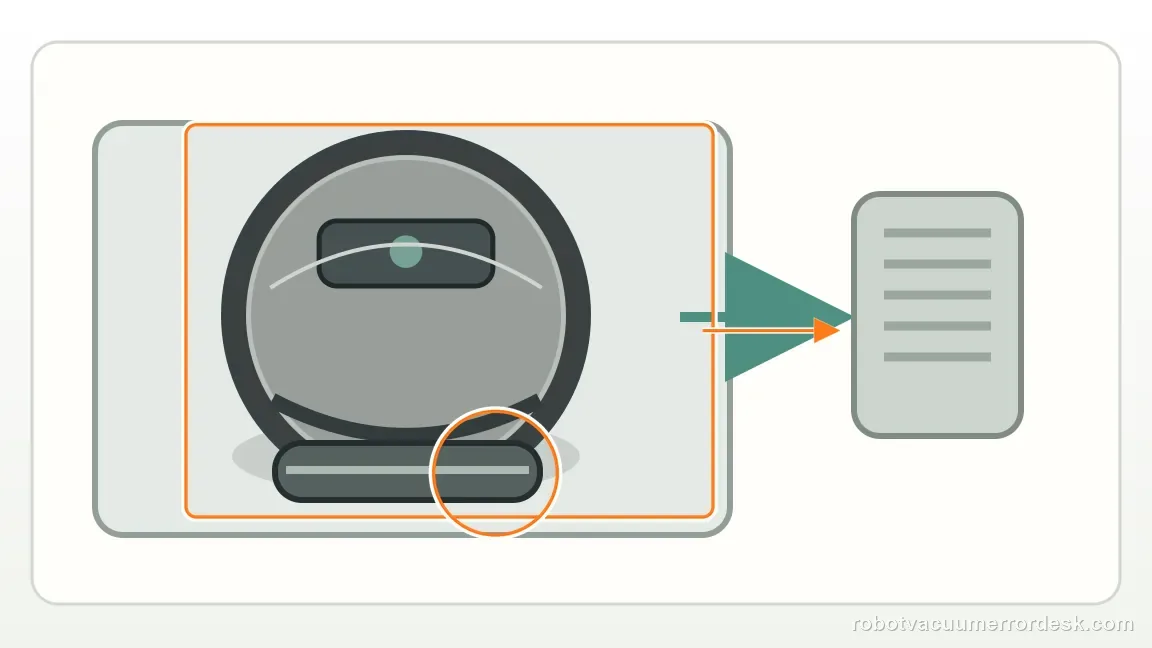
Run the documented Carpet-mode proof
Enable Carpet mode and run a short test as Roborock specifies. Listen for smooth brush rotation and watch whether Error 5 returns. Keep the run short so a renewed bind is easy to identify.
Escalate a repeat with a clean, freely seated brush
If Error 5 returns immediately after both ends, both slots and seating are verified, record the brush condition and alert. Do not force the brush drive or replace unrelated dock parts; the owner-level jam checks are complete.
Escalate when Error 5 returns with the main brush, both ends and both installation slots clean, the brush cover correctly seated and the brush moving freely during the documented retest. Send photos of the cleaned slots/brush ends and a short repeat video. Do not open the brush drive or motor housing to continue the diagnosis.
Before you contact support, gather this
A reproducible case moves a support call past the basic troubleshooting script faster than “it doesn’t work” does, and it keeps the clues from your own tests on record.
- Exact model name and the error code / voice prompt exactly as shown
- A photo or screenshot of the app error and the time it occurred
- A short list of the checks already completed and what happened after each one
- Firmware/app version if the issue began after a software change
Where this comes from
Roborock Saros 20 Sonic — Error 5
Roborock’s exact-model support page directs Error 5 troubleshooting to tangles in the main brush, its slots and both ends, followed by a Carpet-mode test. This review keeps Error 5 centered on the Saros 20 Sonic main-brush assembly, including both end areas and installation slots, before any unrelated suction or navigation checks.
Additional official source: Roborock Support Center — Help & Manuals ↗Additional official source: Roborock Support — Error 5 ↗Last editorial review: September 5, 2026Regional note: manufacturer help centers, model suffixes, mains-power requirements and warranty procedures can differ by country. If the source redirects to a local support site, confirm that the model/hardware scope still matches before following a region-sensitive step.
This guide is rated Official model support. See what each evidence label means →
Questions people ask
Why inspect the brush slots too?
Because Roborock’s Error 5 instructions do not stop at cutting hair from the visible brush. Debris packed into the brush ends or the two installation slots can keep the roller loaded or seated incorrectly. Remove the brush, clean both ends and both slots, then reinstall the cover with its tabs aligned before deciding the jam branch has actually been cleared.
Is this a dock problem?
Not on Roborock’s published Saros 20 Sonic Error 5 path. The first diagnosis is the main brush: tangles, brush ends, installation slots and correct reassembly. Keep dock troubleshooting separate unless you also have a distinct return or charging symptom. If Error 5 returns with a clean, freely seated brush, document the brush and escalate rather than chasing dock settings.
Why test in Carpet mode after cleaning the brush?
Because Roborock includes a Carpet-mode run in the exact Error 5 procedure after the brush, ends and slots are cleaned. It gives you a controlled confirmation close to the manufacturer’s own path. If the brush turns freely and the error still returns promptly during that test, the accessible jam/seating explanation has become much weaker.
What causes Error 5 on a Roborock Saros 20 Sonic?
Error 5 is the main-brush jam diagnostic. Roborock says to remove anything tangled around the brush, including debris inside both installation slots and at both ends, then test again with Carpet mode enabled. Cleaning only the center bristles can miss hair packed at the bearings. If the brush is clean and free but the error returns immediately, contact support.
Why does Error 5 come back after I cut hair off the main brush?
Hair can remain at either brush end or debris can sit inside the two installation slots, so the brush still drags after the visible bristles look clean. Roborock specifically calls out those hidden areas. Remove and inspect the full brush, clean the ends and slots, reinstall it correctly, then run the Carpet-mode proof test before assuming the motor has failed.
Did this diagnostic narrow the fault?
Use this as an editorial signal, not a popularity counter. If a feedback address is configured you can email the note; otherwise you can copy it for your own support record.