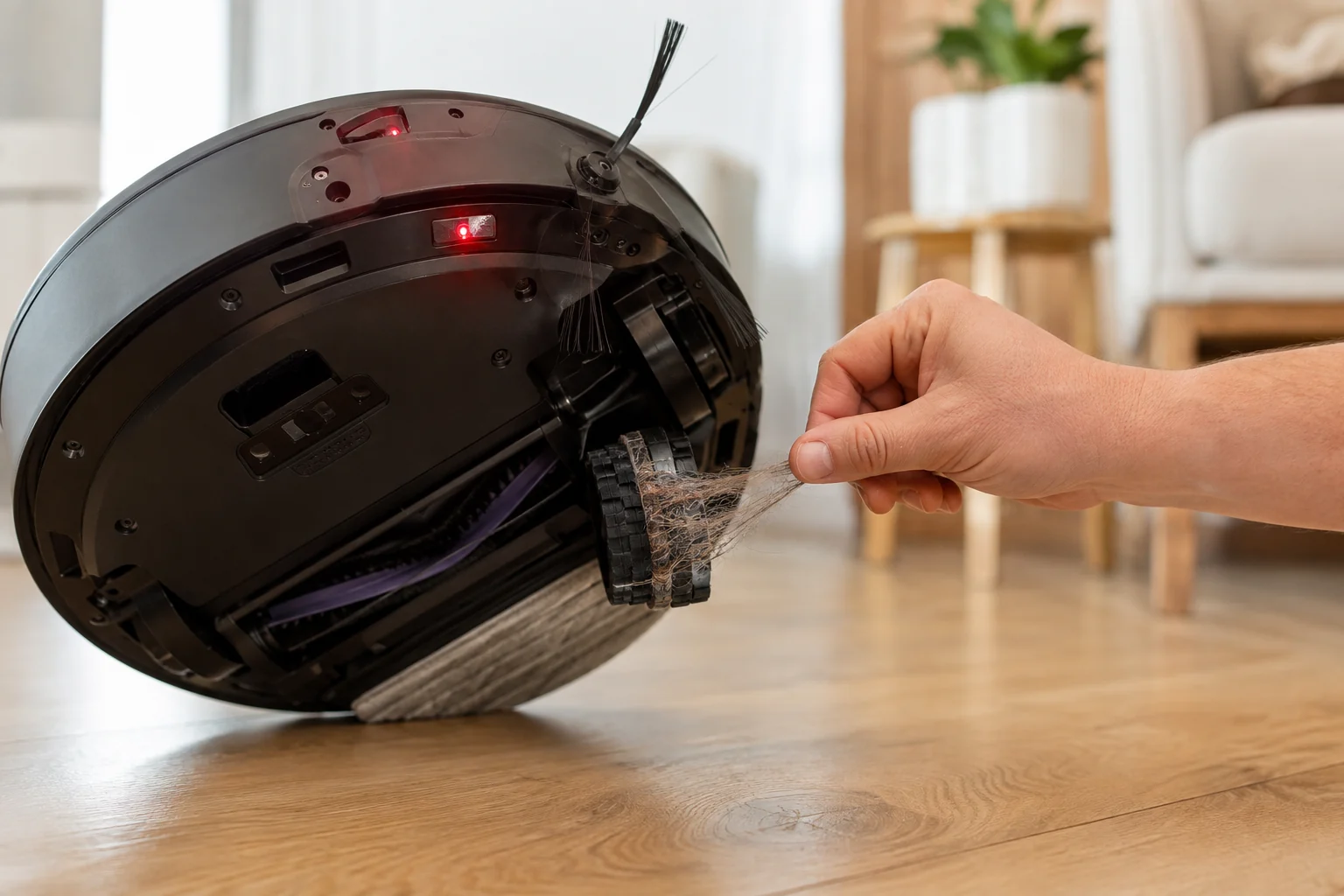
On the Shark Matrix 2-in-1, CLEAN red + DOCK red + ! red flashing means a drive wheel is stuck. Shark's owner manual tells you to clean the wheels and remove debris wrapped around the axles so they can move freely. Power the robot off, compare both drive wheels, remove accessible hair or thread, check that each wheel can compress and return through its normal suspension travel, then move the robot away from thresholds or objects that may have loaded one side. Restart on flat hard flooring. If the code clears, the original stop was consistent with a jam or external load. If one wheel still binds with no visible debris, or the same red/red/red pattern immediately returns on open flooring, stop forcing the mechanism and contact Shark.
Confirm the exact model and exact code, light pattern or symptom.
Run the lowest-risk physical or software check first.
Use each pass condition to decide what the result actually narrows down.
Is this the problem you’re seeing?
- CLEAN, DOCK and ! all flash red on the Matrix 2-in-1.
- One drive wheel is visibly jammed by hair, thread or debris.
- The robot stopped while climbing a threshold or sitting against an obstacle.
- The same stuck-wheel code returns after accessible debris is removed.
Likely root causes, ranked
Hair or thread is wrapped around the accessible axle/wheel opening
A small hard object is blocking rotation or suspension travel
The robot is physically loaded against a threshold, furniture base or trapped object
One drive wheel remains mechanically abnormal after cleaning
Drive-wheel module fault persists after external obstruction has been ruled out
What the result narrows down
| What you observe | What it narrows down | Next move |
|---|---|---|
| CLEAN red + DOCK red + ! red | The manual identifies a stuck drive wheel. | Power off and inspect both wheels for accessible debris or external loading. |
| Code appeared while robot was wedged | The environment may have physically blocked wheel motion. | Move to open floor and retest before treating the wheel module as failed. |
| Hair/thread is visible at wheel opening | A removable jam is a strong first cause. | Clear the wrapping and compare wheel movement again. |
| One wheel remains stiff with no debris | The issue has moved beyond a simple external obstruction. | Stop forcing the wheel and document the asymmetry for Shark. |
| All-red code returns immediately on open floor | A persistent drive-wheel fault is more credible. | Contact Shark with the LED photo and short travel video. |
Do not factory-reset by default. Use the exact model’s reboot/network-reset procedure only when the manufacturer path calls for it.
Checks to run, in sequence
Confirm the all-red wheel-stuck pattern
Watch the indicators long enough to verify CLEAN red + DOCK red + ! red flashing. Shark assigns that combination to a stuck drive wheel. This is different from the wheel encoder failure, where CLEAN is white, and that color difference changes the service path. Photograph the lights before shutting the robot down. If the pattern is not the all-red combination, use the matching error table entry instead of applying wheel-stuck maintenance to a different fault.
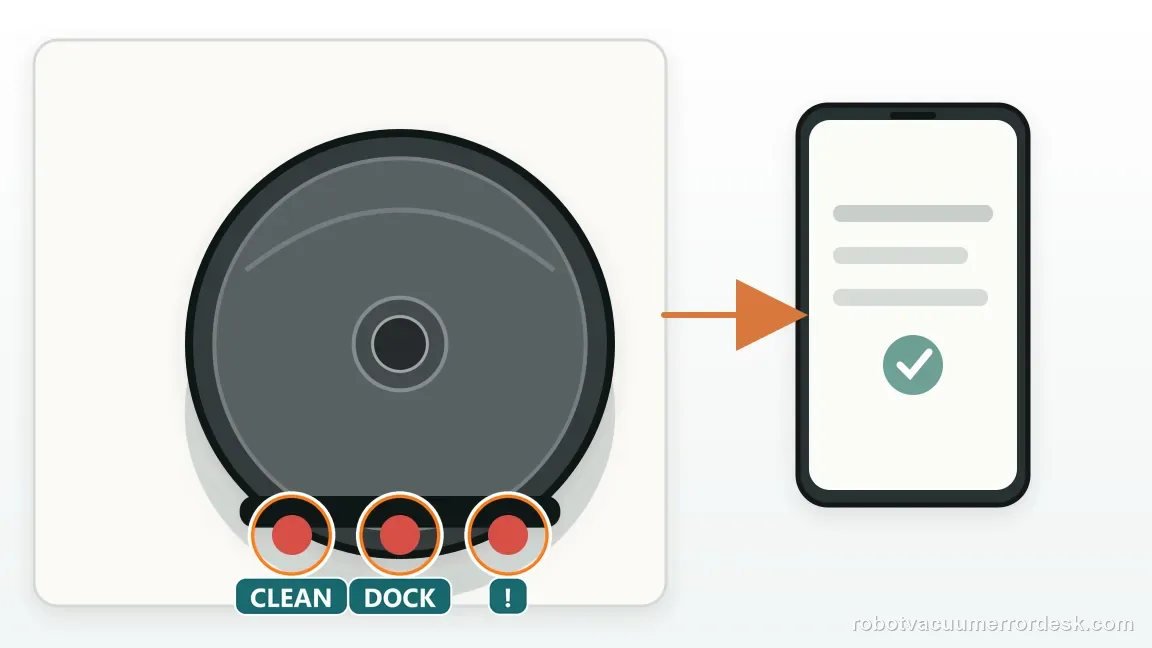
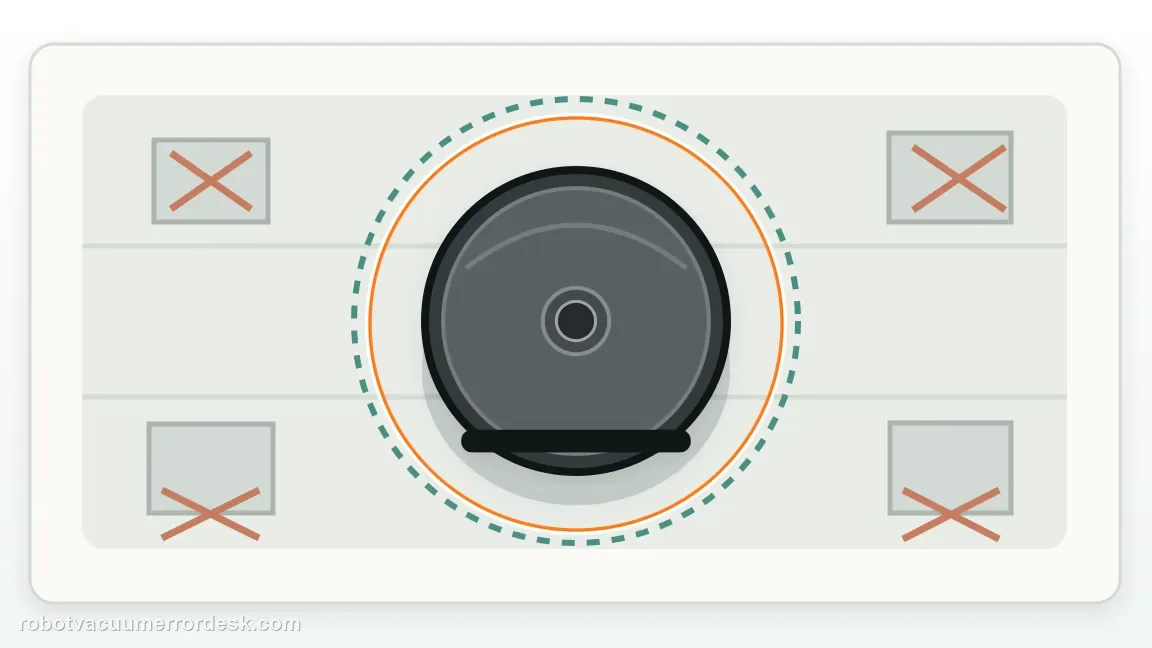
Power down and free the robot from environmental load
Switch the Matrix off and move it to a flat work area. If the code appeared while the robot was straddling a threshold, caught on a cord or pressed against furniture, remove that external load before judging the wheel itself. A wheel can be unable to rotate because the robot is physically wedged even when the drive module is healthy. Note the original location so you can later tell whether the fault is tied to one obstacle rather than occurring everywhere.
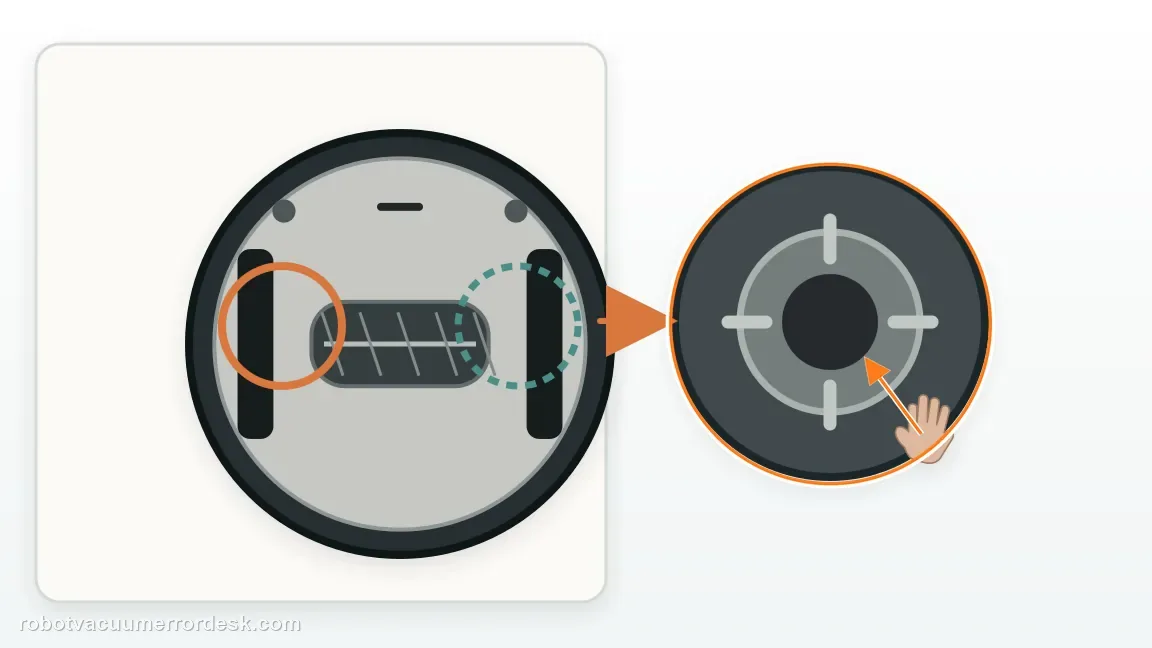
Compare the left and right drive wheels by feel
Press each wheel gently through its normal up/down travel and compare the two sides. Look for one side that feels stiff, does not spring back or cannot rotate through the same accessible range as the other. Do not force the wheels beyond normal movement. The comparison is more useful than judging one wheel in isolation because it gives you a built-in reference for what the mechanism should feel like on this exact robot.
Remove hair and thread from accessible wheel/axle areas
Use fingers or the appropriate owner-safe tool to pull away hair, thread and fibers visible around the wheel opening or accessible axle area. Rotate or move the wheel only within its normal range to expose trapped material. Do not remove the drive module or insert tools deep into the housing. When the wrapping is gone, repeat the left-versus-right comparison. If movement becomes symmetrical, you have a concrete reason to expect the next powered test to improve.
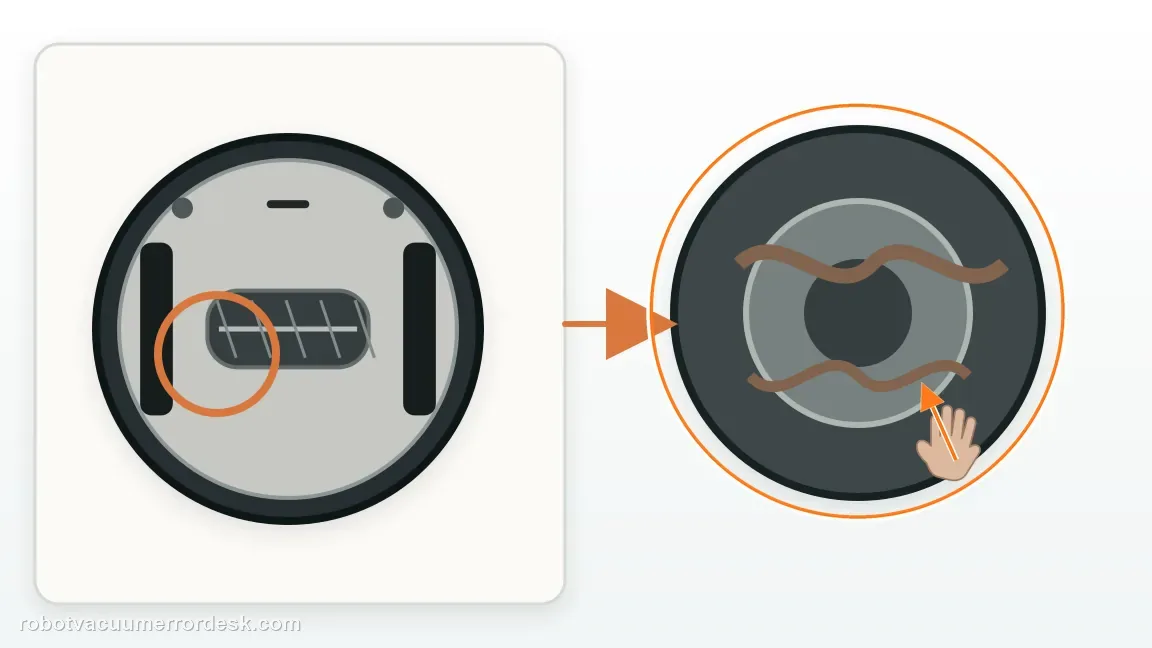
Run the first retest on level hard flooring
Place the robot on open hard flooring away from rugs, thresholds and chair bases, then power it on and start a short clean. Watch the first few feet of travel. If the all-red wheel code disappears, the previous jam or environment was likely responsible. If the robot veers sharply because one wheel still drags, stop the test rather than letting the motor strain. A simple surface makes wheel behavior easier to interpret than a normal cluttered room.
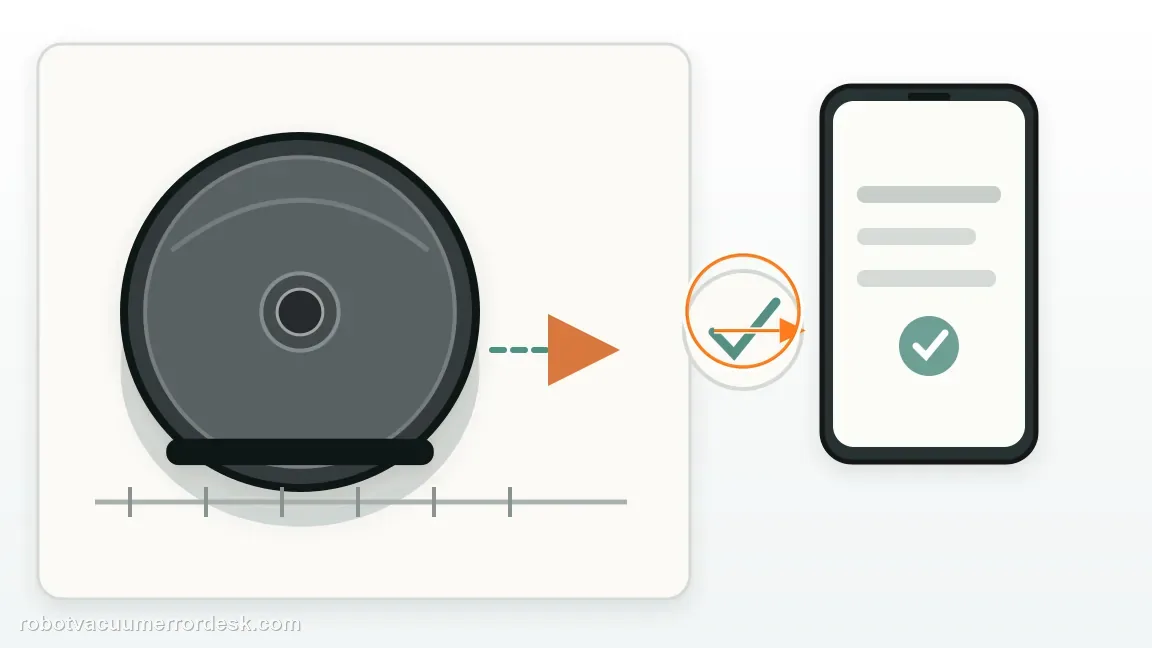
Distinguish repeatable mechanical drag from a one-time jam
When the code returns, power down and compare the wheels again. A wheel that now binds, remains depressed or feels different with no visible debris is no longer a simple cleaning case. By contrast, a robot that runs normally on hard flooring but jams at the same threshold has an environmental trigger that should be removed or avoided. Do not add lubricant or force the wheel to 'break it free'; that can damage seals or gears and destroys the clean service evidence.
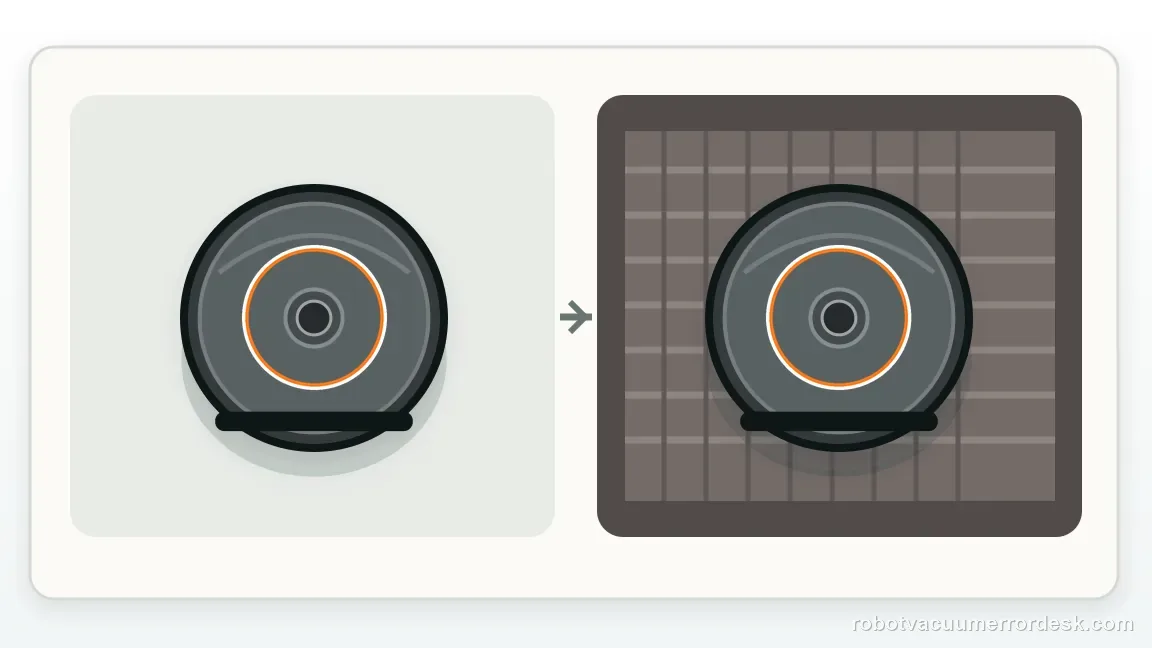
Escalate a clean wheel that still behaves abnormally
Contact Shark when the same CLEAN red + DOCK red + ! red code returns on open level flooring after accessible debris is removed, especially if one wheel still has abnormal travel. Send the LED photo, model/serial number, a short video of the first movement and what you found during the left/right comparison. Do not open the drive-wheel housing. The manual's owner fix is external cleaning; a persistent mechanical or drive fault belongs in the manufacturer service path.
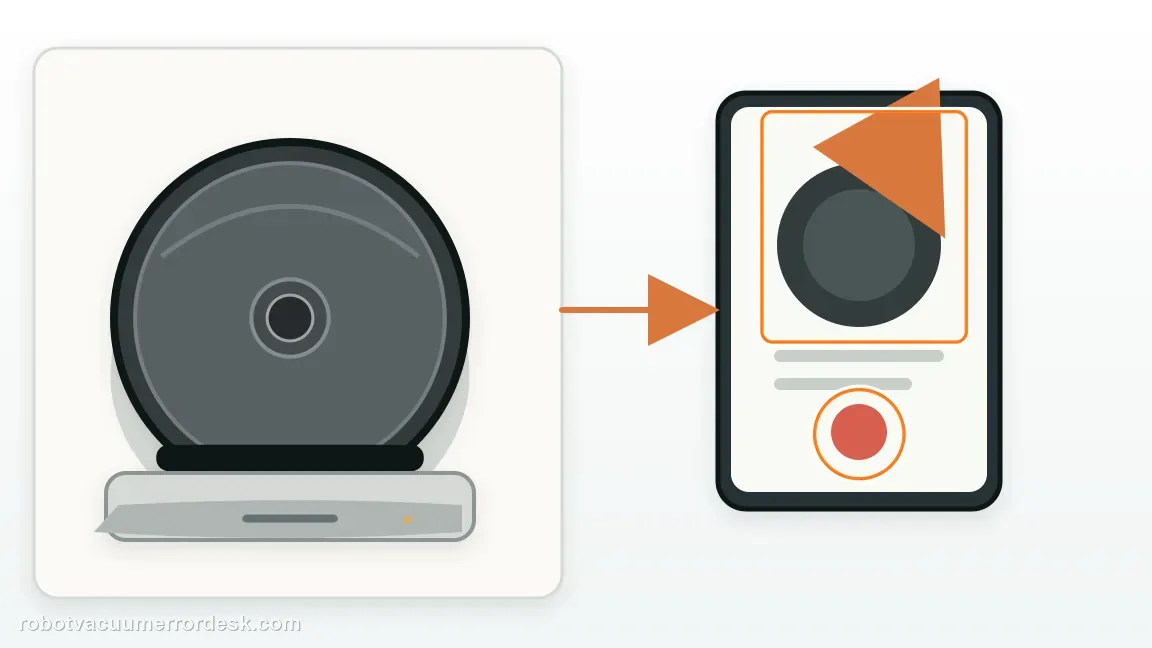
Escalate when CLEAN red + DOCK red + ! red repeatedly returns on level open flooring after all accessible wheel wrapping is removed and the robot is no longer trapped by an obstacle. State whether one wheel has different spring travel or rotation, and provide a video of the first movement after restart. If the problem occurs only at one threshold or object, fix that environment first. Do not lubricate or open the drive module; Shark's owner instructions stop at cleaning the wheels and accessible axle area.
Information to have ready for support
Support can skip the basic troubleshooting script when you provide a reproducible case. That keeps the results of your checks from getting lost.
- Exact model name and the error code / voice prompt exactly as shown
- A photo or screenshot of the app error and the time it occurred
- A short list of the checks already completed and what happened after each one
- Firmware/app version if the issue began after a software change
Source and evidence level
Shark Matrix 2-in-1 owner manual — drive wheel stuck
The Matrix 2-in-1 troubleshooting table maps CLEAN red + DOCK red + ! red flashing to a stuck drive wheel and tells owners to clean the wheels and remove debris around the axles.
Additional official source: Shark Matrix Plus 2-in-1 German owner manual / error-code table ↗Last editorial review: September 5, 2026Regional note: manufacturer help centers, model suffixes, mains-power requirements and warranty procedures can differ by country. If the source redirects to a local support site, confirm that the model/hardware scope still matches before following a region-sensitive step.
This guide is rated Official manual. See what each evidence label means →
Common questions
What do three red flashing lights mean on Shark Matrix 2-in-1?
When CLEAN, DOCK and the exclamation mark all flash red, the Matrix 2-in-1 owner manual identifies a stuck drive wheel. Confirm that CLEAN is red, because the wheel encoder failure uses a white CLEAN light. Power the robot off, remove accessible hair or debris from the wheels, compare left and right movement, then retest on flat open flooring before deciding the drive module needs service.
Can a threshold trigger the Shark Matrix drive-wheel-stuck code?
Yes. A robot straddling a high threshold, cord or furniture base can have one wheel physically loaded so it cannot move normally. Remove the robot from that obstacle and retest on level hard flooring. If the all-red wheel code disappears, the environment likely contributed. If it returns immediately on open floor with the wheel clean, a persistent wheel/module problem becomes more plausible.
How should the two Shark Matrix drive wheels compare by hand?
With the robot powered off, each wheel should have broadly similar accessible rotation and spring travel. You are looking for a clear asymmetry: one side that binds, stays depressed or feels much stiffer than the other. Do not force either wheel beyond its normal range. If visible hair is removed but one wheel still behaves abnormally, document that difference and move toward Shark support rather than deeper disassembly.
Should I lubricate a stuck Shark Matrix drive wheel?
No. The owner manual tells you to clean the wheels and remove debris around accessible axle areas; it does not instruct owners to add lubricant or open the drive assembly. Lubricant can attract debris or enter places it should not, and forcing a wheel can damage gears. Clear only accessible wrapping, compare movement and use an open-floor retest to decide whether manufacturer service is needed.
When should I contact Shark for a stuck drive wheel?
Contact Shark when the exact CLEAN red + DOCK red + ! red pattern returns on open hard flooring after accessible debris is removed and the robot is not trapped by an obstacle. Include a photo of the code, the model/serial number and whether one wheel feels different from the other. A short video of the first movement is especially useful if the robot veers or one wheel fails to turn.
Did this diagnostic narrow the fault?
Use this as an editorial signal, not a popularity counter. If a feedback address is configured you can email the note; otherwise you can copy it for your own support record.