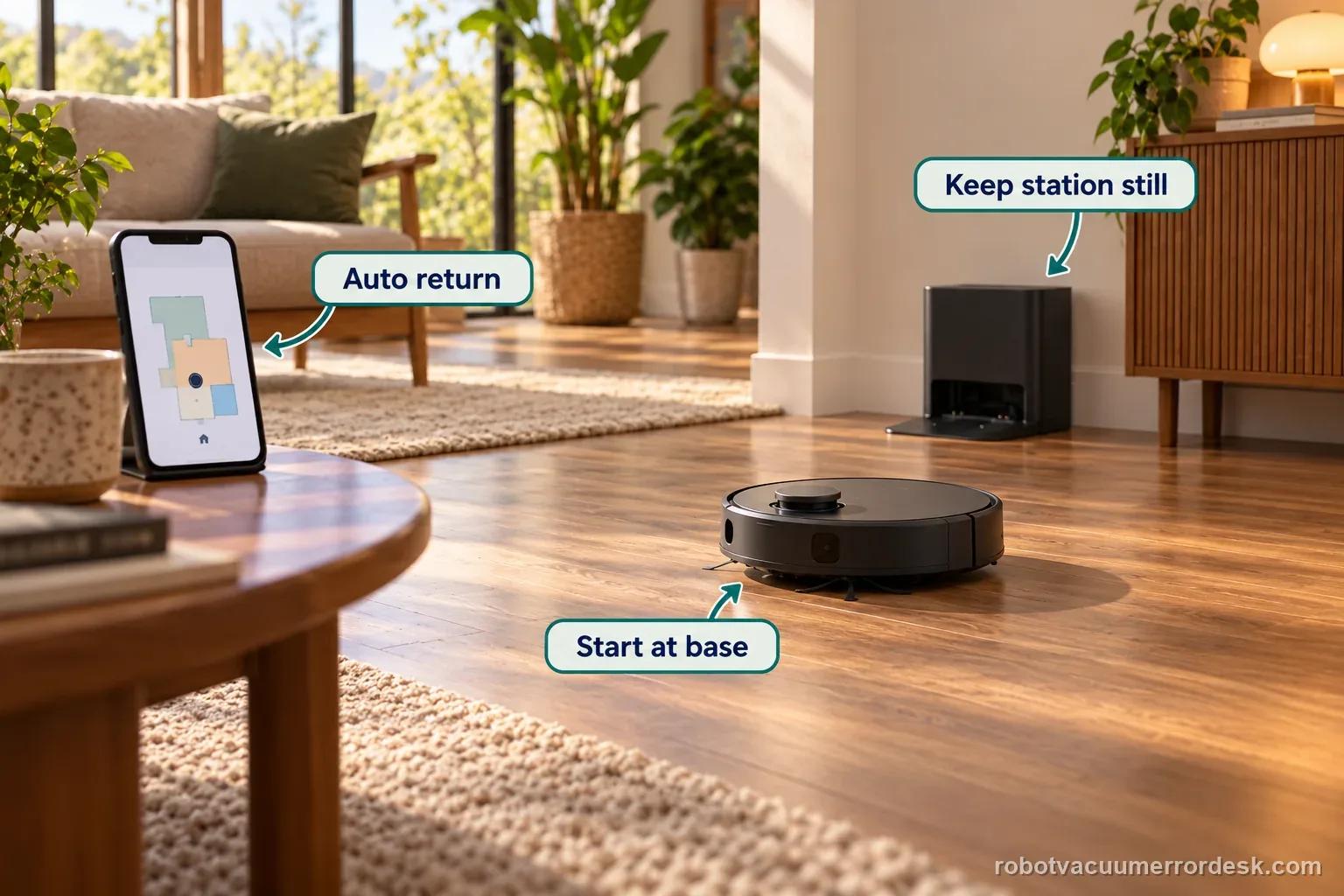
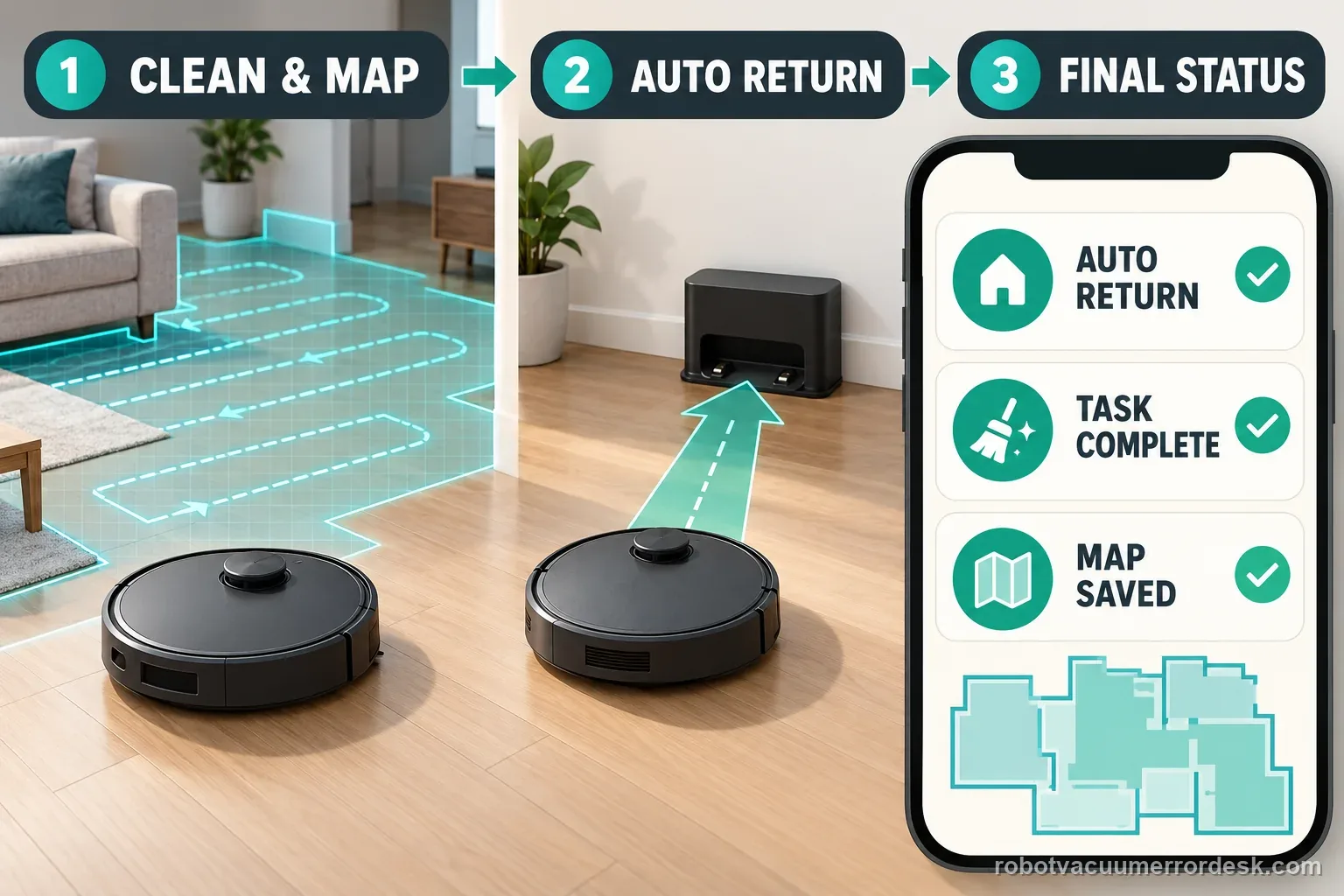
For the X50, a map is not just a drawing created at startup; Dreame ties reliable saving to the full mapping/cleaning cycle. Update firmware first, place the base where it can stay fixed with clear surroundings and good Wi-Fi, then rebuild the map only after that setup is stable. Start the robot from the station and do not move the base during the task. Most importantly, let the robot finish and return automatically: Dreame warns that manually sending it to charge or physically placing it on the base because the battery is low can prevent the map from saving successfully. If an alarm occurs while the robot is building the map, resolve it promptly and resume from a cleaned area rather than judging the final map while the task is still faulted.
Looking for Dreamehome? This page covers the X50 map that disappears after a run. If the app cannot reach the robot at all, restore that connection before judging whether a completed map was saved.
A missing map and an unfinished map need different tests
| Observation | What it separates | Next action |
|---|---|---|
| Robot was carried home | Run ended manually | Repeat an automatic return |
| Alarm stopped the task | Mapping did not finish normally | Resolve that alarm first |
| Full task ended normally | Save conditions were met | Record the missing map |

Confirm the exact model and exact code, light pattern or symptom.
Run the lowest-risk physical or software check first.
Use each pass condition to decide what the result actually narrows down.
Is this the problem you’re seeing?
- The X50 creates part of a floor plan but the map is missing or unsaved after the task.
- A mapping run ended with manual docking, a low-battery intervention or another interruption.
- The base station was moved during mapping or sits in a cluttered/poor-Wi-Fi location.
- An alarm occurred while the robot was mapping/cleaning.
- You are about to delete and rebuild a map and want to avoid repeating the same failure.
A map that will not save is different from a robot that is physically trapped or not charging. Use the matching symptom guide if that is what you see: Roborock Error 8 obstacle checks · Dreame L20 Ultra charging checks
Likely root causes, ranked
Firmware is not current
Base location is unstable, obstructed or outside a good Wi-Fi area
Robot did not start from the base or the base moved during the run
The task did not complete with an automatic return to the base
Low battery caused manual charge/docking before the save cycle completed
An unresolved alarm interrupted the mapping/cleaning process
What the result narrows down
| What you observe | What it narrows down | Next move |
|---|---|---|
| Map disappears after a run that ended in manual docking | Dreame explicitly warns that manually sending/placing a low-battery robot to charge can prevent successful map saving. | Repeat from the base with enough charge and let the robot finish and return automatically. |
| Base was moved during the mapping task | The map’s reference point changed while the robot was building it. | Choose a stable base location, delete/rebuild only after the position is fixed, and do not move it mid-run. |
| Alarm occurred before mapping finished | The mapping/cleaning workflow was interrupted by a fault that Dreame says should be handled promptly. | Resolve the alarm and resume from a cleaned/open area before evaluating map persistence. |
| Repeat failure after clean full-cycle mapping | The documented owner checks no longer explain the failure. | Send Dreame environment photos, a short failure video, model and firmware version. |
| Full run starts from fixed base and returns automatically, but map still does not persist | The key documented save conditions have been proved and the simple interruption explanation no longer fits. | Stop repetitive deletions and send environment photos, failure video, model and firmware to Dreame. |
Two endings that look like the same failure
The rescue that interrupted saving
You see a nearly complete floor plan. The battery warning appears, so you carry the X50 to its station. Later, the map is absent. That attempt does not prove a storage fault. Dreame warns that manual charging or placement during this stage can prevent saving. Charge the robot, remove the obstacle that caused the delay, and repeat from the fixed base. Let the task end and return automatically. Check the saved map only after that sequence finishes.
The complete run that still loses its map
The robot leaves the station, completes the accessible rooms, and returns by itself. No alarm interrupts the task, yet the saved map is missing. Photograph the final dock position and capture the app result. Note the firmware version and the task ending. Those observations now match the conditions Dreame asks owners to verify. Send that evidence to support instead of deleting the map again. A repeated reset would remove context without isolating another cause.
Illustrative decision sequence. These are observations, not measured repair success rates.
- Start at fixed base
- Finish without interruption
- Check the saved map

Do not factory-reset by default. Use the exact model’s reboot/network-reset procedure only when the manufacturer path calls for it.
Checks to run, in sequence
Update firmware before rebuilding anything
Open the app Settings area and check Firmware Update, as Dreame instructs for X50 map-creation/save failure. Do this before deleting a map so you do not spend time reproducing a behavior on software that the manufacturer already expects to be current. Record the firmware version for your notes; Dreame asks for it if the problem reaches support. After updating, restart the app/robot normally and keep the existing base location unchanged until you have assessed whether another map build is actually needed.
Stabilize the base location before deleting and rebuilding
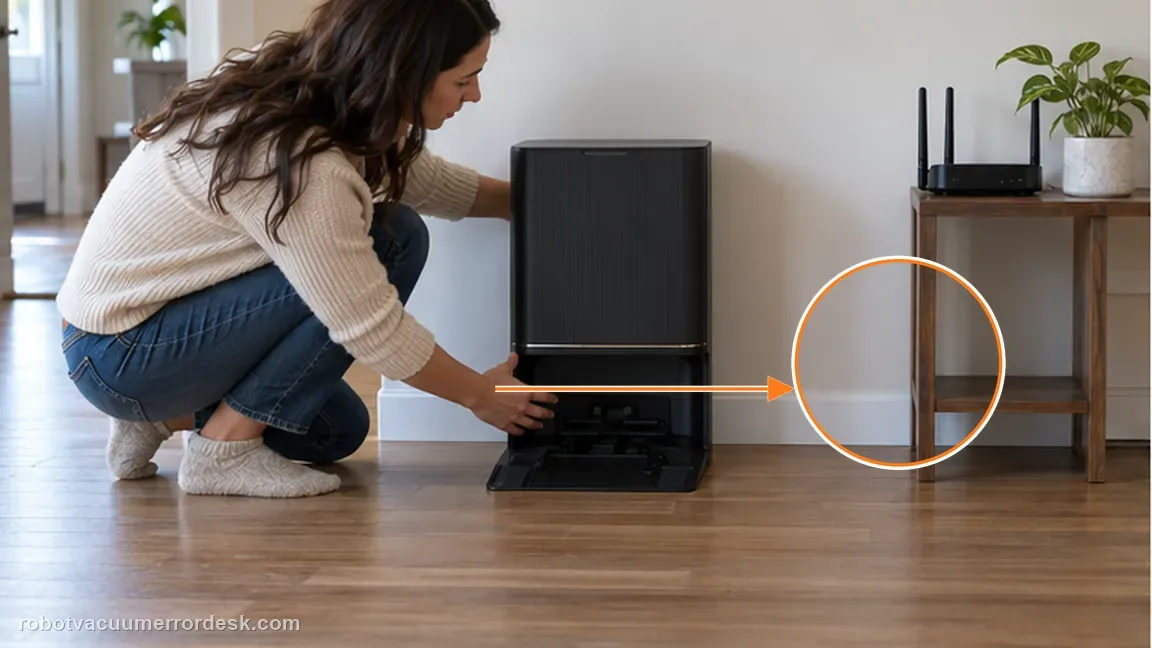
Dreame’s next branch is environmental: place the station where there are no immediate obstacles around it and where Wi-Fi coverage is suitable. Only after that setup is stable should you delete the original map and rebuild. Avoid shifting the base “a little” during the test; the robot uses the station as a reference point and Dreame specifically says not to change its location once mapping has started. Photograph the final position so a later failure can be compared against the same geometry.
Start the mapping/cleaning cycle from the base
Place the X50 on the station and start the task from there. Do not carry the robot into a room to “help” it begin faster, and do not relocate the base after the run starts. This keeps the start reference consistent with Dreame’s documented save path. If the robot is already partway through a failed attempt, stop changing multiple variables and begin one clean controlled run from the station instead. The goal is to prove whether a proper station-origin cycle can create a map that persists.

Let the robot finish and return automatically
This is the most important save-condition discriminator in Dreame’s article. Allow the X50 to finish its cleaning/mapping task and return to the base by itself. If the battery becomes low, Dreame warns that manually setting it to charge or physically placing it back on the station can prevent the map from saving successfully. For the proof run, begin with enough charge and avoid manual intervention. If you must rescue the robot for safety, treat that run as diagnostically incomplete rather than concluding that the map system is broken.
Resolve alarms during mapping and preserve evidence if save still fails
Dreame notes that the robot builds the map while cleaning. If an alarm occurs, address it promptly and place the robot in a cleaned/open area as directed so the mapping task can continue in a stable environment. After a clean full-cycle run, check whether the map persists. If it still does not, do not loop through repeated deletions. Capture photos of the operating environment and a short video showing the mapping/save failure, and record the exact model and firmware version—these are the items Dreame requests for after-sales analysis.

Escalate when current firmware, a fixed clear base with good Wi-Fi, start-from-base behavior and a complete automatic-return cycle still fail to produce a saved map. Send Dreame photos of the operating environment, a short video showing the mapping/save failure, the X50 model and firmware version, and note whether any alarm occurred. Do not keep deleting maps once the same controlled cycle has failed repeatedly.

Keep a map-save test record
| Stage | Question to answer | Evidence to keep |
|---|---|---|
| Start | Robot on fixed base | Dock position photo |
| During task | Any alarm or manual move | Exact alert and time |
| End | Automatic return completed | Saved-map screenshot |
Information to have ready for support
Support can skip the basic troubleshooting script when you provide a reproducible case. That keeps the results of your checks from getting lost.
- Exact model name and the error code / voice prompt exactly as shown
- A photo or screenshot of the app error and the time it occurred
- A short list of the checks already completed and what happened after each one
- Short video showing the failed docking, mapping or base-station behavior
- Firmware version shown in Dreamehome
Source and evidence level
Dreame X50 Ultra Complete — Map creation failed / unable to save
Dreame’s exact X50 map article requires current firmware, a stable/clear base in suitable Wi-Fi range, starting from the base without moving it, allowing the task to complete and return automatically, and resolving alarms promptly; it warns that manual charging/docking during a low-battery run can prevent successful map saving and lists the evidence to send support.
Additional official source: Dreame X50 Ultra User Manual ↗Last editorial review: September 5, 2026Regional note: manufacturer help centers, model suffixes, mains-power requirements and warranty procedures can differ by country. If the source redirects to a local support site, confirm that the model/hardware scope still matches before following a region-sensitive step.
This guide is rated Official model support. See what each evidence label means →
Common questions
Can manually placing the X50 on the base stop a map from saving?
Yes. Dreame explicitly warns that if the battery becomes low and you manually set the robot to charge or physically place it on the base before the task finishes, the map may not save successfully. For a diagnostic rebuild, start with enough charge and let the robot complete the task and return automatically. Treat any rescue/manual docking run as incomplete evidence.
Should I move the base to improve X50 mapping while a run is in progress?
No. Dreame says the X50 should start from the base and that the station location should not change once the task begins. Choose a clear position with suitable Wi-Fi before deleting/rebuilding the map, then keep that location fixed through the entire controlled run. Moving it mid-task changes the robot’s reference and makes a failed save difficult to interpret.
What should I do if an alarm happens during X50 mapping?
Dreame notes that the X50 builds its map while cleaning and says to address an alarm promptly, then place the robot in a cleaned area so the task can continue. Record what interrupted the run. If the alarm forces a manual return or other intervention, do not treat that attempt as a clean map-save test; resolve the fault and repeat one controlled full cycle.
Do I need to delete the existing map before every X50 retry?
No. Dreame’s exact article includes deleting/rebuilding after you stabilize base placement and Wi-Fi, but repeated deletion is not a useful loop after a controlled failure. First prove current firmware, fixed station location, start-from-base behavior and automatic return. If the same full-cycle test still cannot save, preserve photos/video and firmware details for support instead of repeatedly erasing evidence.
What does Dreame ask for if the X50 map still will not save?
Dreame asks for photos of the robot’s operating environment, a short video showing the mapping failure, and the robot model and firmware version. Add whether the base stayed fixed, the run started from it, any alarm occurred, and whether return was automatic. Those facts map directly to the official save conditions and are more useful than another unexplained map deletion.
A floor plan visible during cleaning is not the final save check. Compare how the task ended before rebuilding. Keep one clear record of a complete run if the map still disappears.
Choose the matching model before using another guide's procedure:
X50 docking failed after it reaches the station →Compare a rotated S7 map, not a missing X50 map →Compare a Saros 20 return-path failure →Compare an X8 station-return problem →Did this diagnostic narrow the fault?
Use this as an editorial signal, not a popularity counter. If a feedback address is configured you can email the note; otherwise you can copy it for your own support record.