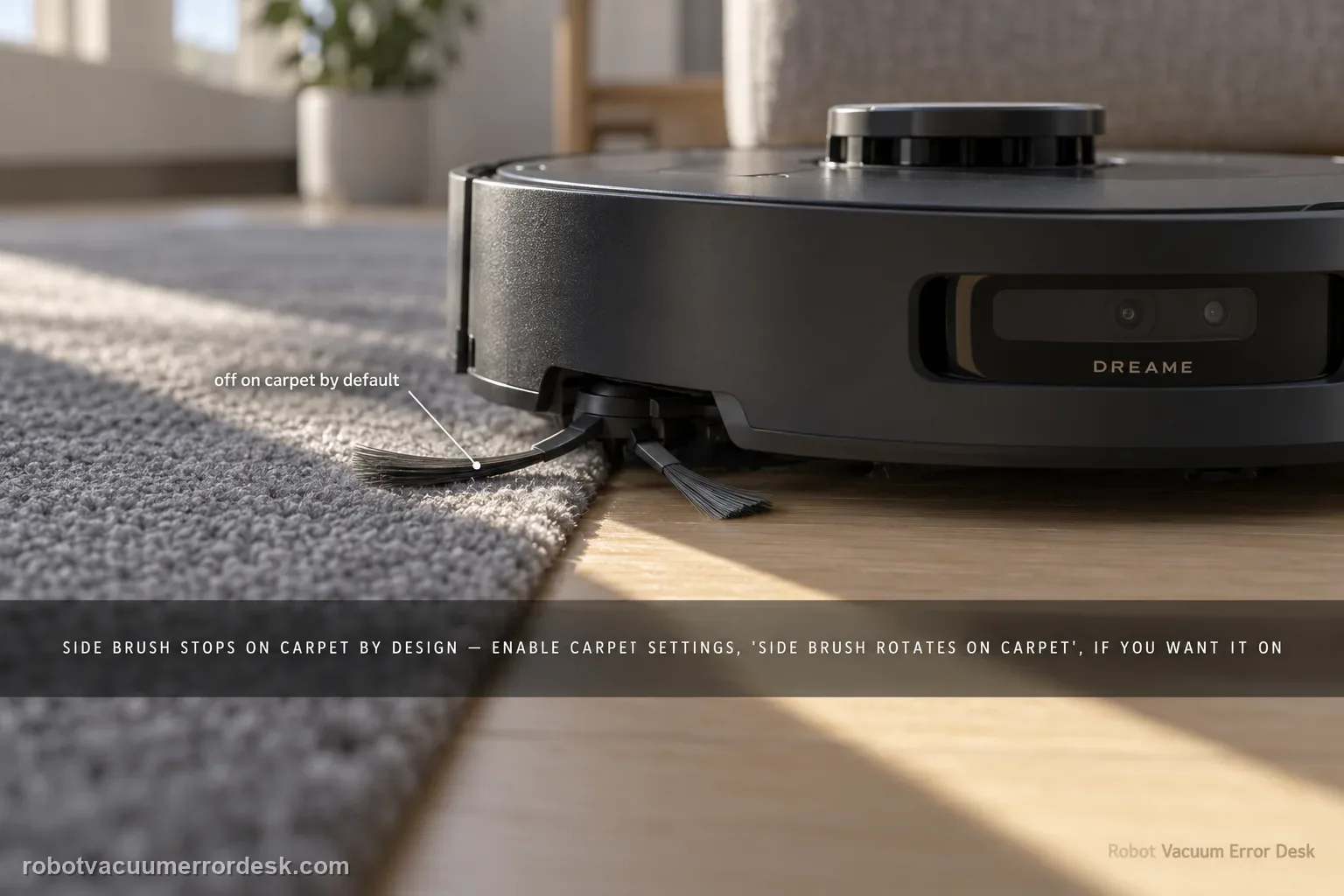
On X40 Ultra, a side brush that lifts and stops on carpet can be normal behavior, not a failed motor. Dreame’s exact X40 carpet-setting page says side-brush cleaning on carpet is disabled by default to reduce secondary contamination, and you can enable Settings → Carpet Settings → “side brush rotates on carpet.” Dreame’s newer X40-series support adds that the brush may also lift during positioning, recharging, cross-zone navigation and voice calls. First prove the brush rotates on hard floor, then reproduce the same carpet transition before and after changing only the carpet setting.
Confirm the exact model and exact code, light pattern or symptom.
Run the lowest-risk physical or software check first.
Use each pass condition to decide what the result actually narrows down.
Is this the problem you’re seeing?
- The side brush works on hard floor but stops on carpet.
- There is no side-brush error message on hard floor.
- The brush lifts as the robot transitions onto carpet.
- You expected edge sweeping to continue across carpet.
Likely root causes, ranked
Normal default carpet behavior with side-brush rotation disabled
The robot is positioning, recharging, crossing zones or in another documented state where the side brush lifts
The carpet setting was changed but the app/device state has not been retested on the same surface
The side brush is deformed or tangled with hair, cords or debris rather than merely lifted by policy
A persistent side-brush fault remains even on hard floor after obstruction and configuration checks
What the result narrows down
| What you observe | What it narrows down | Next move |
|---|---|---|
| Brush rotates normally on hard floor but stops on carpet | Motor function is proven; default carpet policy fits the symptom. | Enable the carpet rotation switch only if you want different behavior. |
| Brush does not rotate on hard floor either | This is not just the documented carpet default. | Inspect the side-brush mechanism and use the side-brush fault path. |
| Setting is off | Stopping on carpet is expected by default. | Turn on “side brush rotates on carpet” for the comparison. |
| Setting is on but app may be stale/offline | The device may not have received the policy change. | Confirm connection and setting persistence, then rerun the same transition. |
| Hard-floor brush works, setting is enabled, carpet still never rotates | Configuration and basic motor function are proven. | Capture the app setting and transition video for Dreame. |
Do not factory-reset by default. Use the exact model’s reboot/network-reset procedure only when the manufacturer path calls for it.
Checks to run, in sequence
Prove the brush works on hard floor first
Run a short hard-floor test. If the side brush rotates normally there and only lifts/stops when carpet is detected, that pattern matches the X40 Ultra’s documented default carpet behavior rather than a dead motor.
Open the connected X40 Ultra in Dreamehome
Dreame’s support path starts with the device connected to the mobile app. Open the X40 Ultra device page before changing carpet behavior.
Go to Settings → Carpet Settings
Open Settings, then Carpet Settings, and locate the control named “side brush rotates on carpet.”
Enable the switch and repeat the same carpet transition
Turn on “side brush rotates on carpet” and repeat the controlled transition. The default stop exists to reduce secondary contamination on carpet, so compare behavior before and after the setting change.
Use the hard-floor-to-carpet transition as the diagnostic proof
Start the X40 on hard floor where the side brush is visibly rotating, then let it cross the same carpet edge. If the brush lifts/stops only after carpet detection, the motor has already proven it can run and the behavior matches Dreame’s documented default policy. This is stronger evidence than staring at the brush while the robot is already on carpet. Also note the robot state: the newer X40-series support says lifting can occur during positioning, recharging, cross-zone navigation and voice calls. Do not label one of those temporary states a carpet-setting failure.
Retest after changing only the carpet setting
Enable “side brush rotates on carpet,” save the setting and repeat the identical transition. Keep suction mode, carpet and route the same. If the brush now rotates on carpet, the original symptom was configuration by design. If it still does not rotate despite working on hard floor, confirm app/device sync before escalating.
Use one carpet type for the entire before-and-after comparison
Different rugs can trigger different carpet-detection and obstacle responses, so use the same carpet edge before and after enabling the rotation setting. Start each pass on the same hard-floor approach and watch the brush transition at the same point. That controlled A/B test keeps carpet material from becoming a second variable when you are trying to validate one app switch. If the brush also fails to rotate on hard floor, inspect it for deformation or entanglement and remove cords/hair as Dreame’s current X40-series article directs. A hard-floor failure is a different branch from the documented carpet policy and deserves mechanical troubleshooting rather than more app toggling.
If the side brush does not rotate on hard floor either, or the app reports an actual brush fault, move to a mechanical side-brush diagnostic or contact Dreame. A carpet-only stop with the setting off is expected behavior. Tell support whether the brush rotates normally on hard floor, whether the carpet toggle changes the same A/B transition, and whether the failure also appears outside carpet or during an entanglement alert.
Information to have ready for support
Support can skip the basic troubleshooting script when you provide a reproducible case. That keeps the results of your checks from getting lost.
- Exact model name and the error code / voice prompt exactly as shown
- A photo or screenshot of the app error and the time it occurred
- A short list of the checks already completed and what happened after each one
- Short video showing the failed docking, mapping or base-station behavior
- Firmware version shown in Dreamehome
Source and evidence level
Dreame X40 Ultra side brush on carpet
Dreame says X40 Ultra lifts/stops the side brush on carpet by default and provides a model-specific app setting to enable rotation on carpet.
Additional official source: Dreame X40 Series — Side Brush Not Rotate ↗Additional official source: Dreame X40 Ultra support hub ↗Last editorial review: September 5, 2026Regional note: manufacturer help centers, model suffixes, mains-power requirements and warranty procedures can differ by country. If the source redirects to a local support site, confirm that the model/hardware scope still matches before following a region-sensitive step.
This guide is rated Official model support. See what each evidence label means →
Common questions
Is it normal for the Dreame X40 Ultra side brush to stop on carpet?
Yes. Dreame says the X40 Ultra disables side-brush cleaning on carpet by default to reduce secondary contamination. If the brush rotates normally on hard floor and stops only when carpet is detected, that pattern fits the documented behavior. You can change it in Dreamehome under Settings → Carpet Settings → “side brush rotates on carpet.”
How do I make the X40 Ultra side brush spin on carpet?
Open the connected X40 Ultra in Dreamehome, go to Settings → Carpet Settings and enable “side brush rotates on carpet.” Save the change, then repeat the same hard-floor-to-carpet transition. The before/after comparison matters: if the brush works on hard floor and begins rotating on carpet after the setting change, the original behavior was configuration, not motor failure.
How can I tell an X40 side-brush motor problem from normal carpet behavior?
Start on hard floor. If the side brush rotates there and stops only when the robot detects carpet, the motor has already demonstrated it can run and Dreame’s default carpet policy is the stronger explanation. If the brush does not rotate on hard floor either, move to a true side-brush blockage/mechanical diagnostic instead of changing carpet settings.
Why does Dreame stop the X40 side brush on carpet by default?
Dreame describes the default as a way to reduce secondary contamination on carpet. The behavior is therefore intentional rather than an automatic sign of a failed side-brush motor. Whether you should enable rotation depends on your cleaning preference; the troubleshooting goal is simply to prove that the observed stop follows the documented carpet policy and not a hard-floor failure.
What if the X40 brush still does not spin on carpet after I enable the setting?
First confirm the robot is connected, the setting remained enabled and the brush still rotates normally on hard floor. Repeat the same carpet transition with no other setting changes. If hard-floor operation is normal but carpet rotation never occurs with the documented switch enabled, record the app screen and a short transition video for Dreame support.
Did this diagnostic narrow the fault?
Use this as an editorial signal, not a popularity counter. If a feedback address is configured you can email the note; otherwise you can copy it for your own support record.