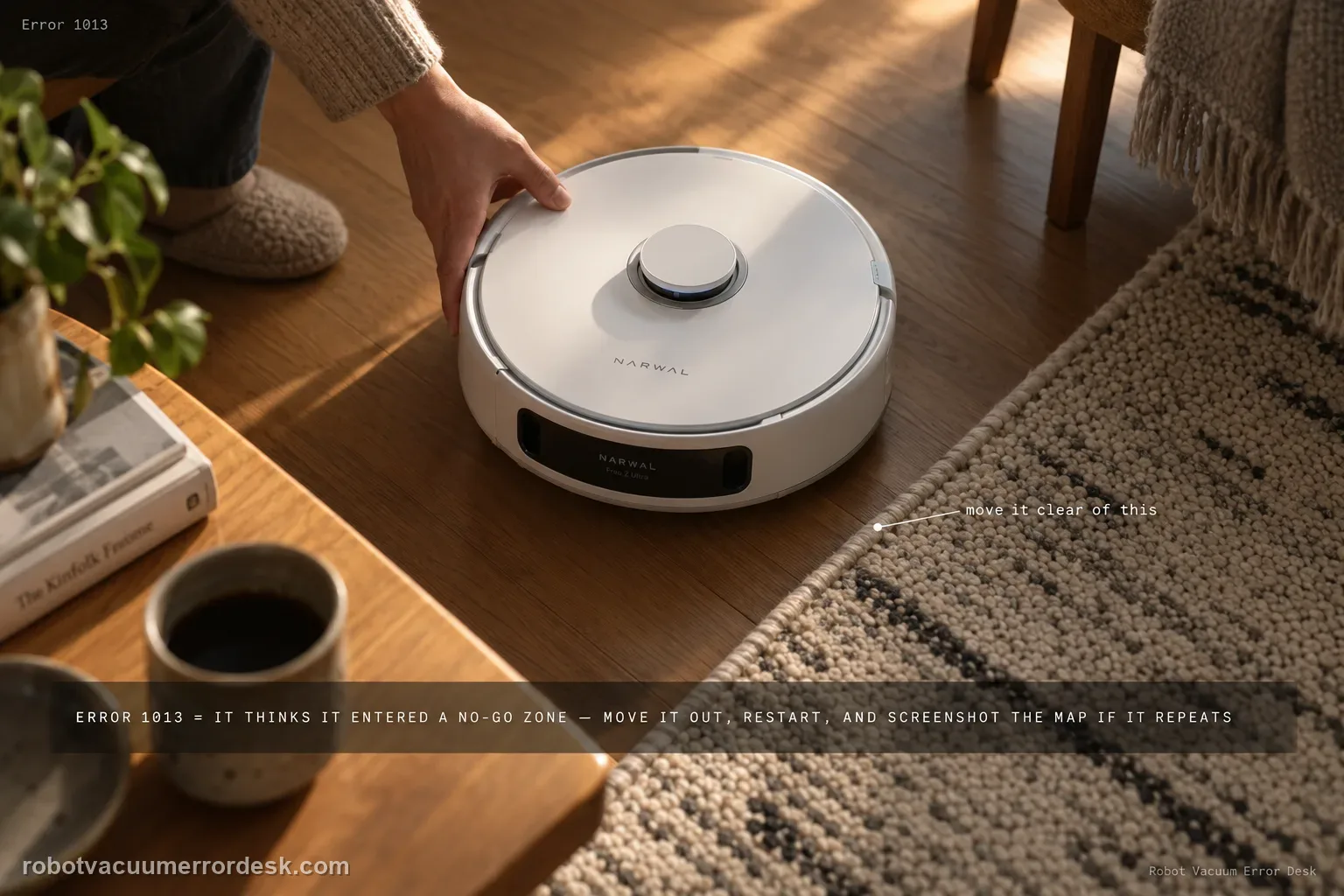
Error 1013 means the robot believes it entered a No-Go Zone. Move it out of the restricted area and restart. If the error repeats, save a screenshot of the map and restricted zones, the robot location, and the exact error message before changing boundaries.
Confirm the exact model and exact code, light pattern or symptom.
Run the lowest-risk physical or software check first.
Use each pass condition to decide what the result actually narrows down.
Confirm this is the right issue
- The app reports Error 1013.
- The robot stops at or inside a No-Go Zone boundary.
- The restricted zone may be close to a doorway, dock route or narrow navigation corridor.
What’s most likely causing this
Robot physically entered a configured restricted zone
Boundary placement conflicts with the robot’s usable path
Map/location mismatch causing the robot to think it crossed the boundary
Reading your test result
| What you observe | What it narrows down | Next move |
|---|---|---|
| Robot is physically inside a configured no-go zone | Error 1013 matches the mapped restriction. | Move it outside the zone and restart. |
| Error triggers exactly on the zone boundary | Boundary geometry/position precision is the key clue. | Save the map and robot-position screenshot before editing. |
| Error triggers after robot is clearly inside zone | Narwal asks support to distinguish this case. | Document the position and how the robot entered the restricted area. |
| Code clears after moving robot outside | Restriction state was the immediate cause. | Keep the no-go zone unless its placement is genuinely wrong. |
| 1013 repeats away from all visible restricted zones | Map/restriction state no longer matches what is displayed. | Send Narwal the full requested evidence set. |
Do not factory-reset by default. Use the exact model’s reboot/network-reset procedure only when the manufacturer path calls for it.
Work through these checks in order
Move the robot outside the restricted area
Place the robot on allowed flooring and restart the task without immediately deleting the No-Go Zone.
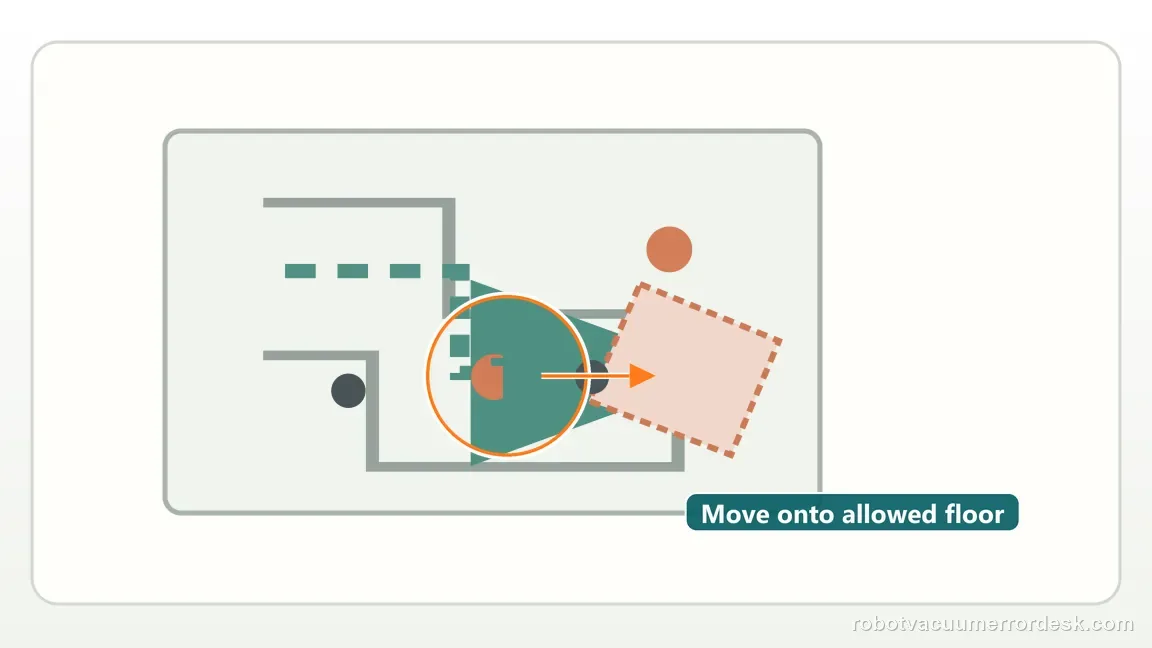
Compare the stop point with the map boundary
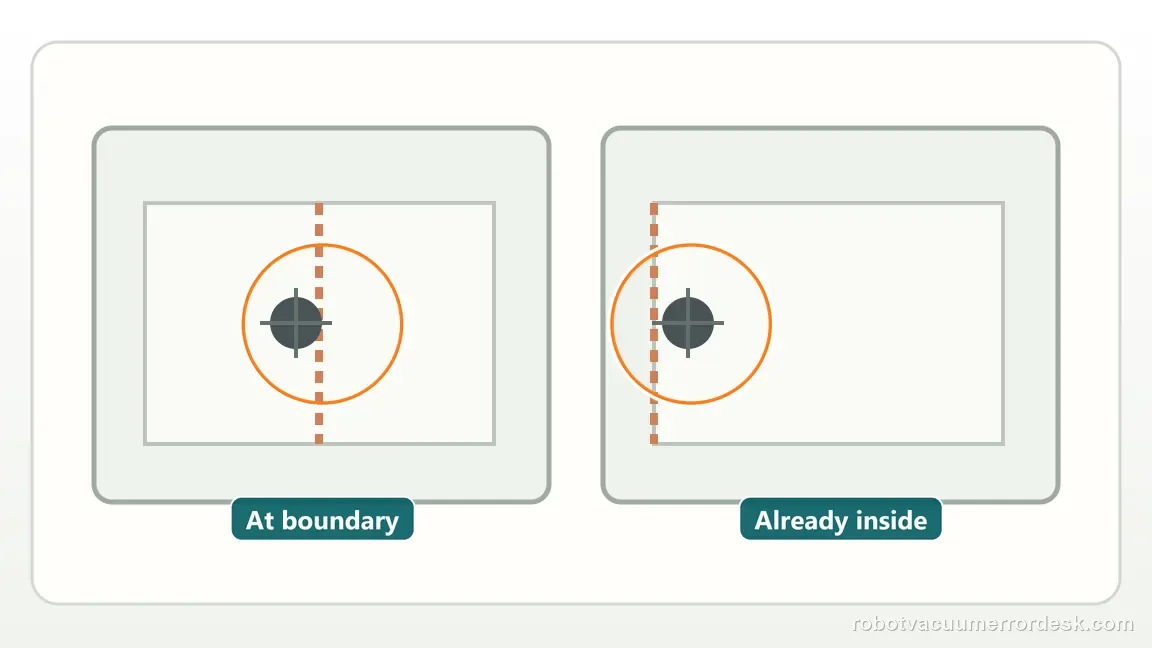
Open the map and note whether the error occurred exactly at the boundary or after the robot visibly crossed it. Zoom the map enough to see whether the robot marker is touching the restriction edge, clearly inside it, or actually outside it. That geometry matters because a boundary-triggered stop can be addressed differently from a robot that appears outside the saved restriction yet still reports the code. Also note whether the no-go shape overlaps a doorway or narrow corridor that the robot must cross to reach another room. Preserve the original shape before making any edit so a later support case has a before/after comparison.
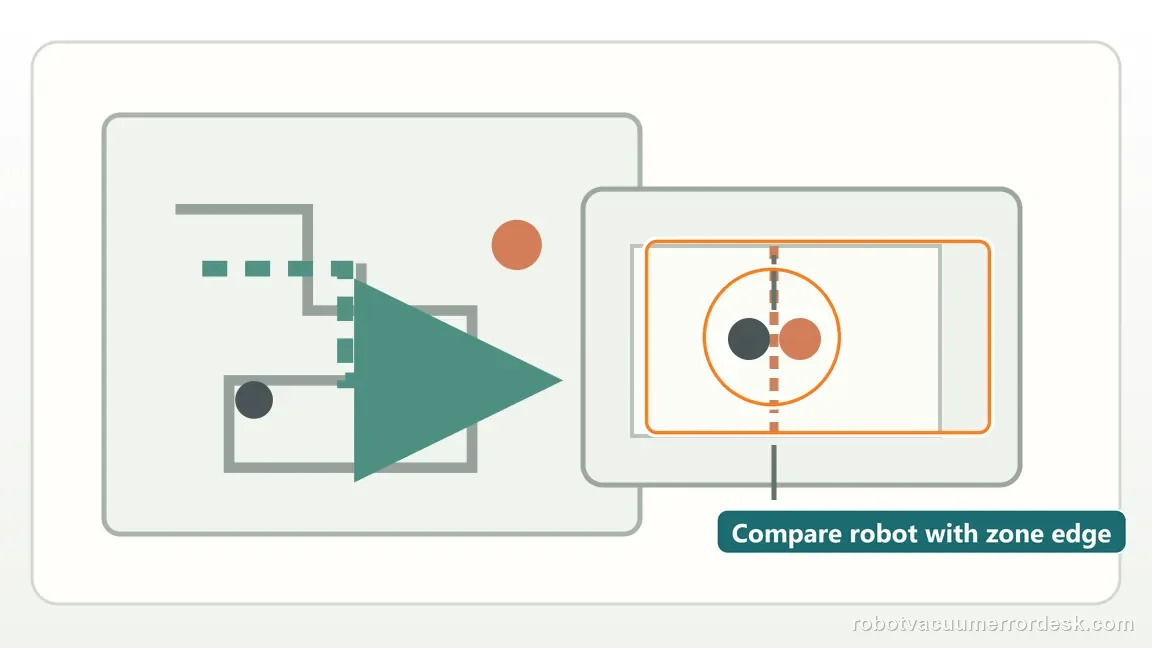
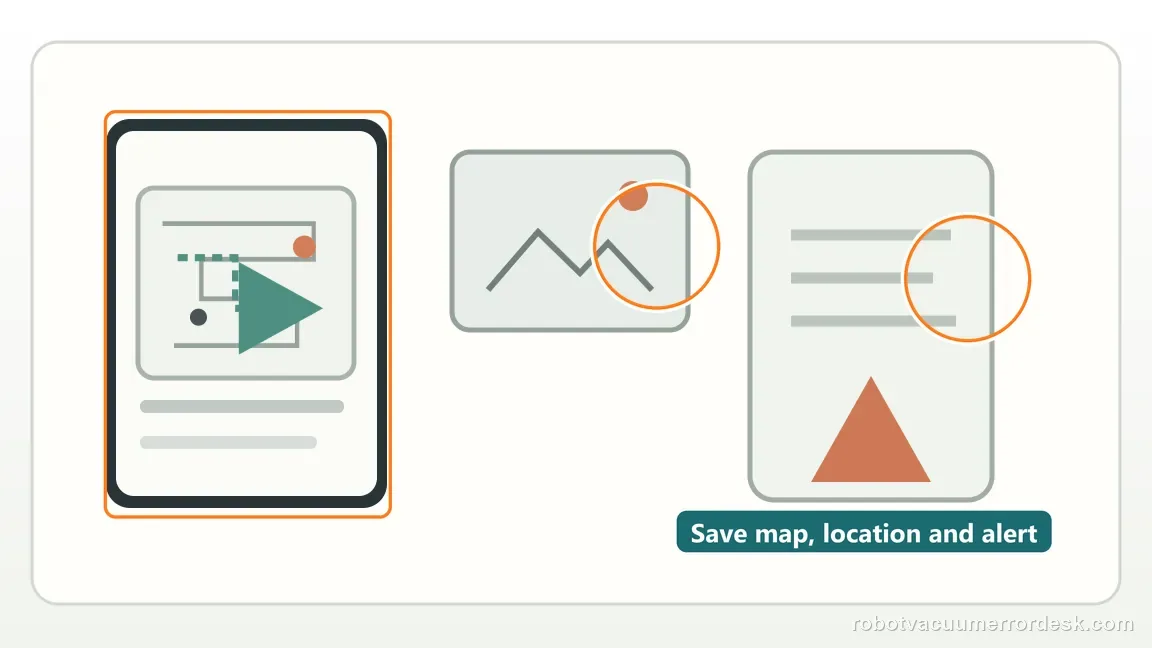
Capture evidence before editing the map
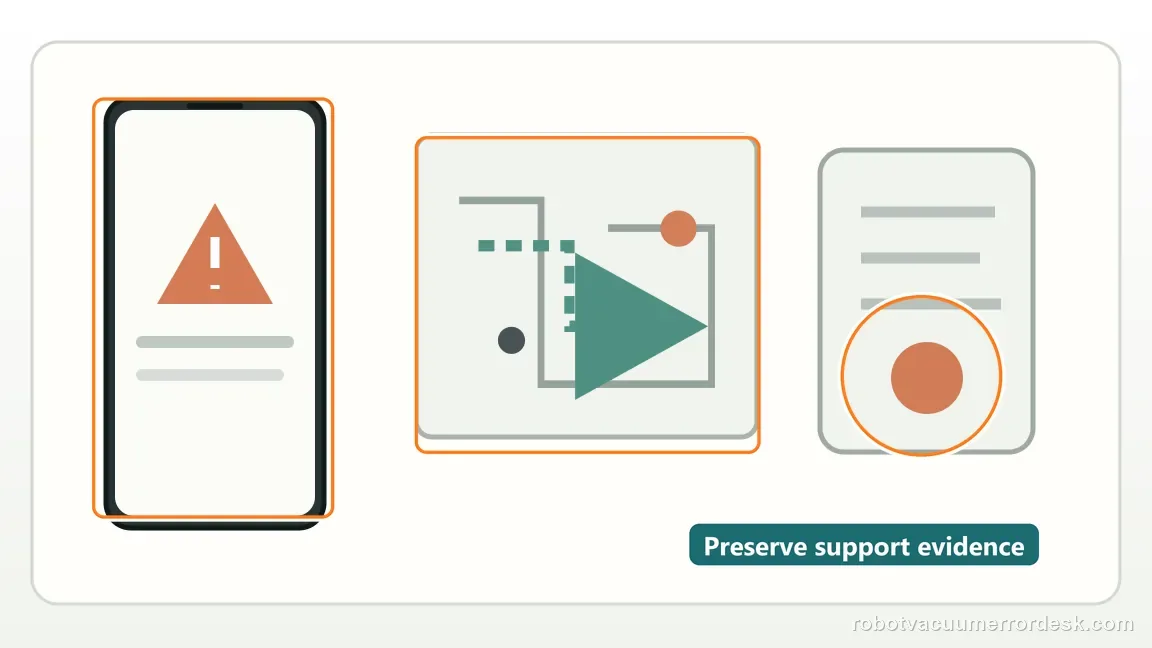
Save screenshots of the restricted-zone map, robot location and error message. Narwal asks for these details when the code recurs. Save three pieces of context together: the restricted-zone map, the robot-location marker and the exact Error 1013 message. Narwal specifically asks for this evidence when the code repeats. If you edit first, you lose the geometry that produced the event. A clean evidence set also prevents a common troubleshooting mistake—widening or deleting every no-go zone when only one boundary or one stale map reference is involved.
Determine whether the stop occurred at the boundary or after the robot entered it
Narwal specifically asks support cases to state whether Error 1013 triggered at the restricted-zone boundary or after the robot had entered the zone. Do not edit the boundary yet. Compare the robot icon with the no-go geometry and note which side of the line the robot was on when the code appeared.
Create the complete evidence set before editing restricted zones
Capture the map with no-go zones visible, the robot location, a photo/screenshot of the Error 1013 message and the app account details Narwal requests. Then move the robot outside the restricted area and restart the task. If the code repeats at the same boundary, you still have the original geometry available for support review.
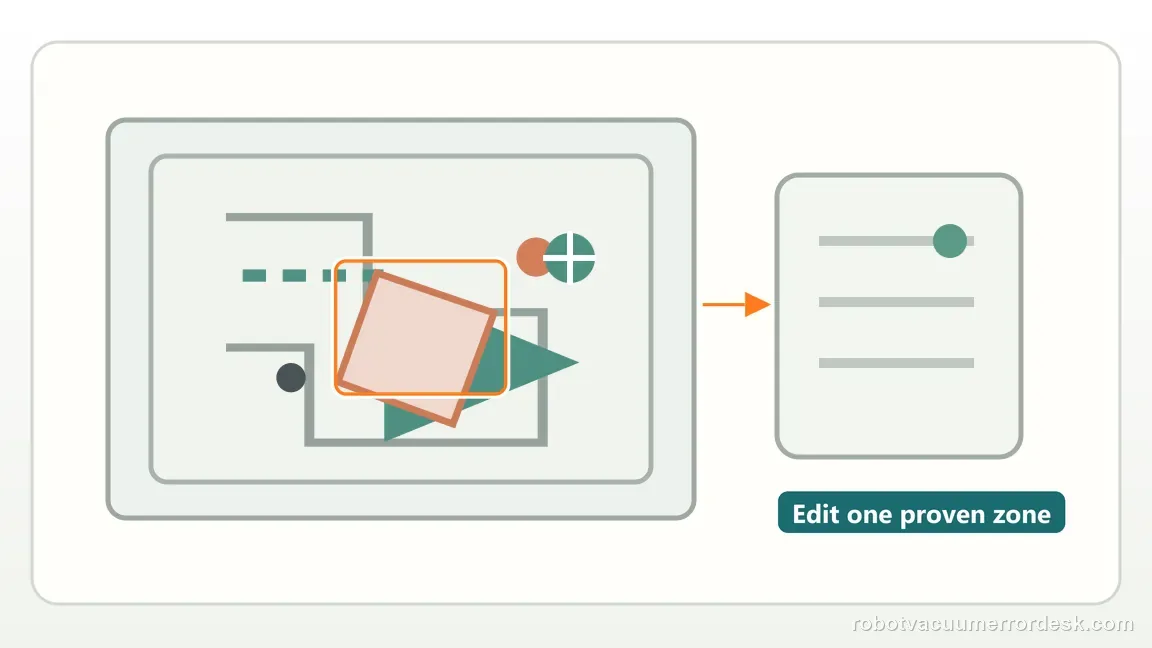
Check for overlapping or stale restricted-zone geometry
Before editing, inspect the map closely for overlapping no-go rectangles, narrow slivers or a restriction that was created for a previous furniture layout. Keep a screenshot of every existing boundary. If you decide a zone is genuinely misplaced, change only that one boundary and repeat the same task so you know whether the correction, rather than a broader remap, changed Error 1013 behavior.
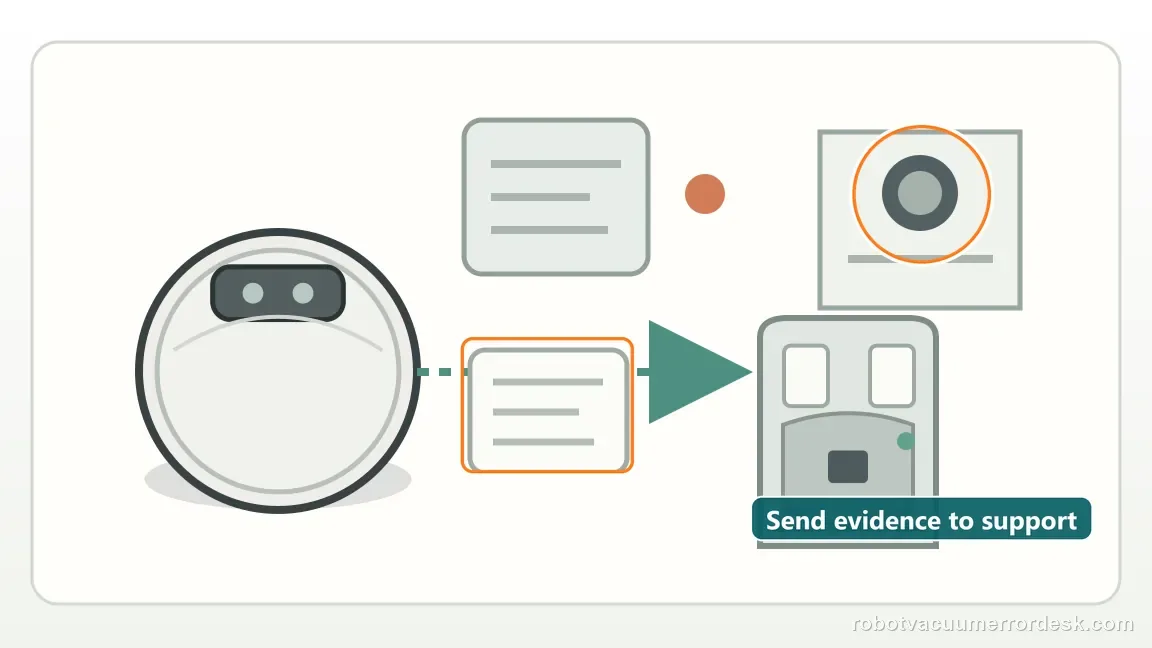
If 1013 repeats when the robot is visibly outside the restricted zone, send Narwal the map, robot-location and error screenshots. That is more useful than repeatedly widening every No-Go Zone.
Before you contact support, gather this
A reproducible case moves a support call past the basic troubleshooting script faster than “it doesn’t work” does, and it keeps the clues from your own tests on record.
- Exact model name and the error code / voice prompt exactly as shown
- A photo or screenshot of the app error and the time it occurred
- A short list of the checks already completed and what happened after each one
- Map screenshots and robot location when the problem involves localization, zones or docking
Where this comes from
Narwal Robot Vacuum Error Code Index
Narwal defines 1013 as Entered NO-GO Zone and specifically requests map, location and error-message screenshots when it repeats. Narwal also asks recurring 1013 cases to distinguish a boundary trigger from entry into the restricted zone, so preserve that exact positional context before changing the map.
Additional official source: Narwal Freo Z Ultra User Manual ↗Additional official source: Narwal Freo Z Ultra support section ↗Last editorial review: September 5, 2026Regional note: manufacturer help centers, model suffixes, mains-power requirements and warranty procedures can differ by country. If the source redirects to a local support site, confirm that the model/hardware scope still matches before following a region-sensitive step.
This guide is rated Manufacturer-general. See what each evidence label means →
Questions people ask
What does Narwal Freo Z Ultra Error 1013 mean?
Narwal defines Error 1013 as “Entered NO-GO Zone.” Move the robot out of the restricted area and restart the task. If it happens again, do not immediately delete the zone. Narwal asks for the map with restricted zones, the robot location, the error message and app account details, plus whether the trigger occurred at the boundary or after entry.
Should I delete my no-go zone when Freo Z Ultra shows Error 1013?
Not automatically. The no-go zone may be doing exactly what it was configured to do. First move the robot outside and restart. If the code recurs unexpectedly, preserve the map geometry before editing it so you can show Narwal where the boundary and robot were. Delete or move a restriction only if you determine its placement is actually wrong.
Why does Narwal care whether Error 1013 happens at the boundary or inside the zone?
That distinction helps support understand whether the problem is boundary precision, map position or how the robot entered the restricted area. Narwal explicitly asks owners to state which situation occurred. Capture the map and robot icon at the moment of failure before moving zone lines, because editing first removes the evidence needed to evaluate that difference.
What screenshots should I save for Narwal Error 1013?
Save the app map with restricted zones visible, a view showing the robot’s location, and the actual Error 1013 message. Narwal also asks for app account details when the error recurs. If possible, add a photo of the physical area corresponding to the boundary. Collect these before editing the no-go zone so the evidence remains internally consistent.
When should I contact Narwal about repeated Freo Z Ultra Error 1013?
Contact support when the code repeats after you move the robot outside the no-go zone, especially if it triggers away from any visible restriction or at the same boundary repeatedly. Provide the complete evidence Narwal requests and state whether the robot was at the boundary or already inside. That is more useful than repeatedly recreating zones without a saved baseline.
What is the safest first change if Error 1013 repeats near one no-go boundary?
Preserve a screenshot of the original map and robot position first. Then, only if the restriction is genuinely misplaced, adjust that single boundary and repeat the same route. Keeping every other zone unchanged preserves the evidence needed to tell whether boundary geometry, rather than a broader remap, changed the result.
Did this diagnostic narrow the fault?
Use this as an editorial signal, not a popularity counter. If a feedback address is configured you can email the note; otherwise you can copy it for your own support record.